Skip to main content
How Can We Help?
Sharing the API key is crucial as it improves app performance through app updates, strengthens app security, and streamlines app management. This help document provides detailed step-by-step instructions on how to share your API key for Android apps.
This process consists of 3 sections:
- Create service account
- Enable Play Store API
- Give admin access to the service account email
Create service account
- Log in to the Google Play Console using credentials with
OwnerPermission. - In a separate tab, sign in to the Google Cloud Console using the same credentials as in Step 1.
- In the Google Cloud Console, click Select a project.
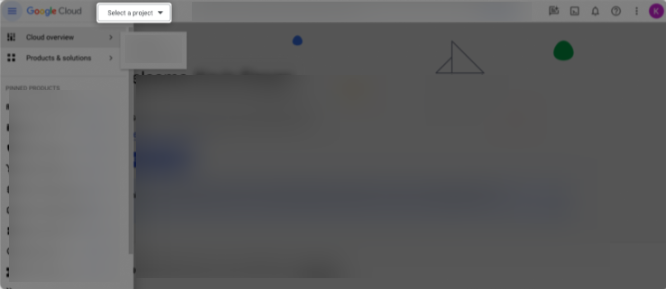
- If you already have a project, you can skip this step and the next one. Otherwise, click New Project.

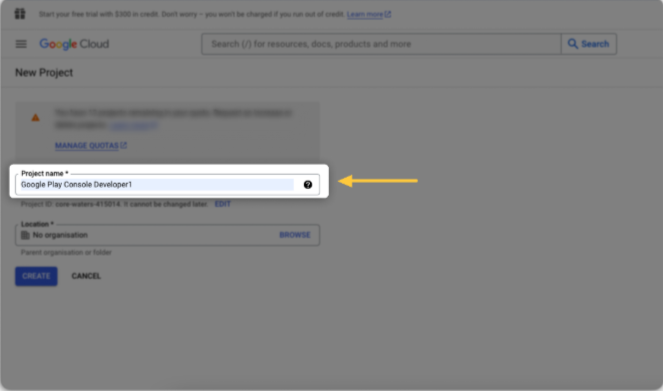
- In the Project name field, enter Google Play Console Developer1, then click the Create button. After the project is created, refresh the page.
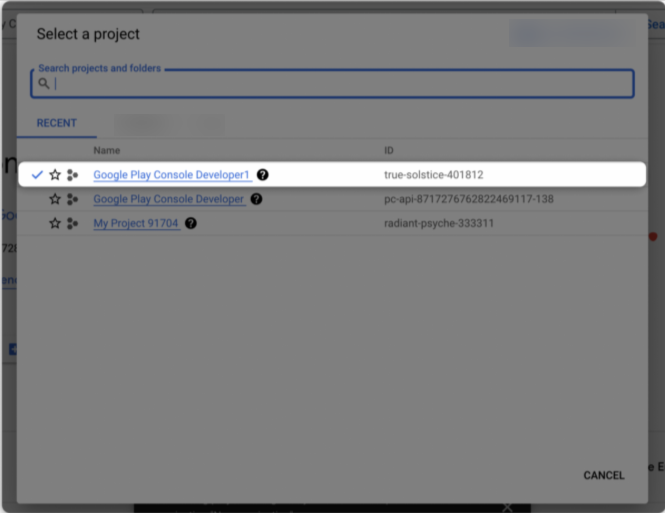
- Select the newly created project,Google Play Console Developer1. Alternatively, you may choose an existing project.
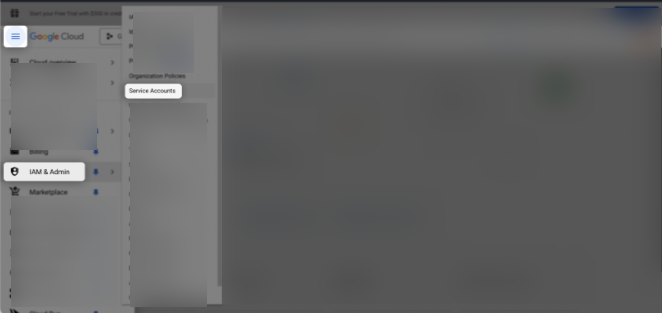
- From the hamburger menu, go to IAM & Adminand select Service Accounts.
- Click CREATE SERVICE ACCOUNT.

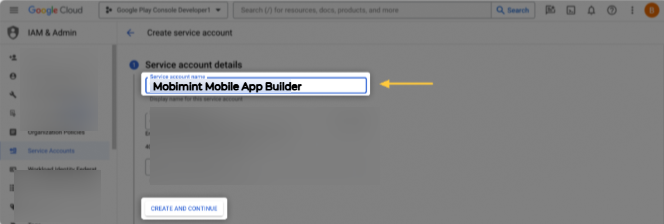
- Enter “Mobimint Mobile App Builder” as the service account name, then click Create and Continue.
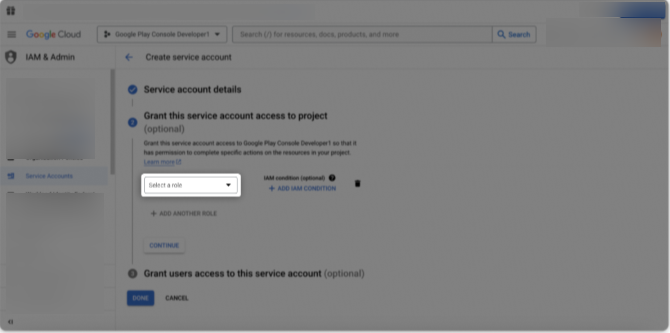
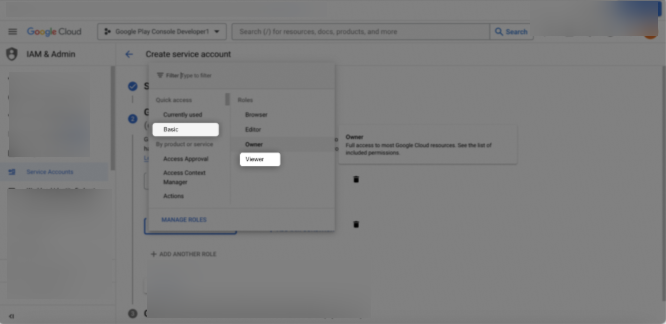
- Click the Select a role dropdown menu.
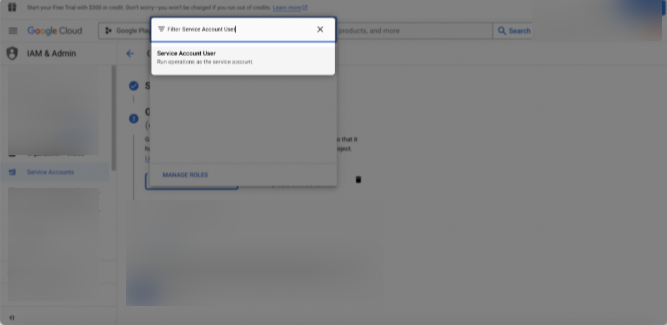
- Choose Service Account User from the dropdown menu.
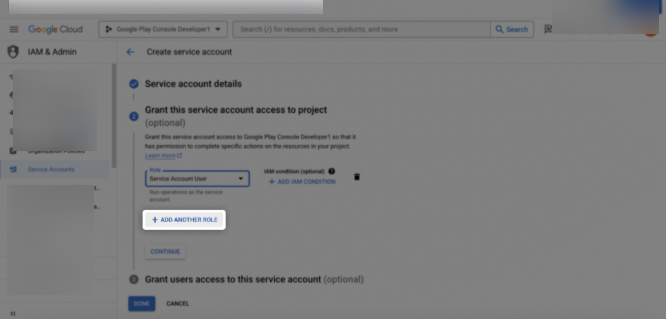
- Click + ADD ANOTHER ROLE.
- Click Basic,then select the Viewer role.
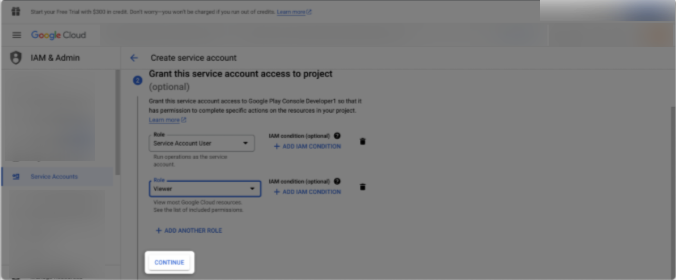
- Click Continue to associate the selected roles.
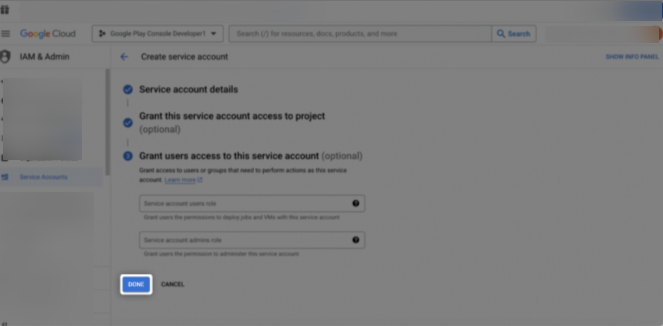
- Click DONE.
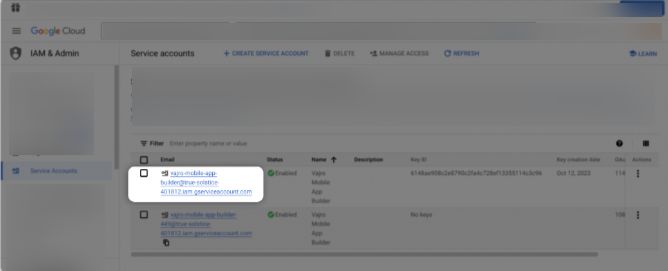
- Once the service account is created, copy and save its email ID, as it will be needed in a later step. Then, click on the newly created account under Service Accounts.
Enable Play Store API
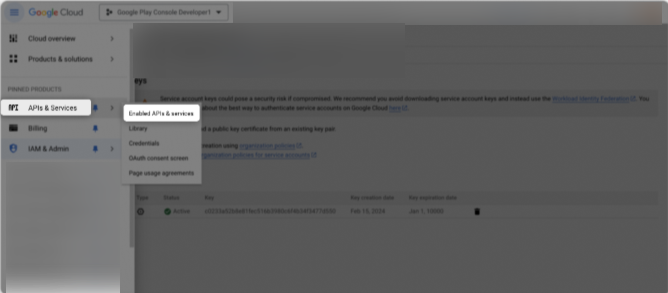
- In the same project, go to APIs & Services and click Enabled APIs & Services.
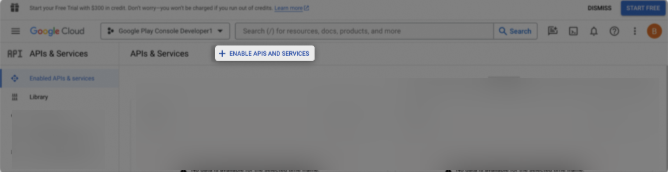
- Click + ENABLE APIS AND SERVICES.
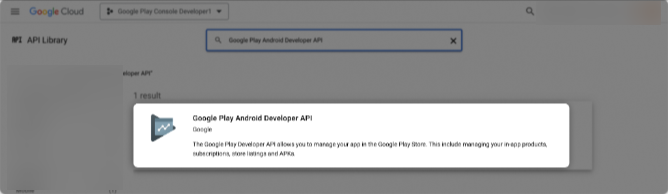
- Search for Google Play Android Developer API in the search bar, then click the corresponding search result.
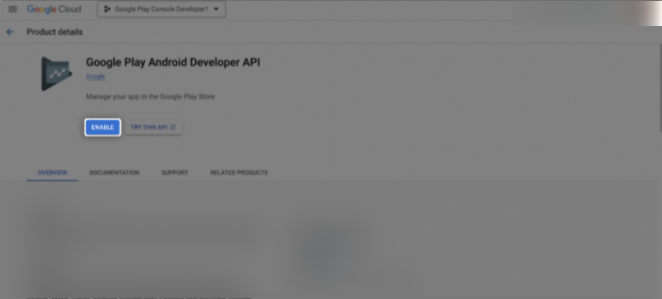
- Click ENABLE button.
Giveadmin access to the service account email.
- Switch back to the Google Play Console browser tab.
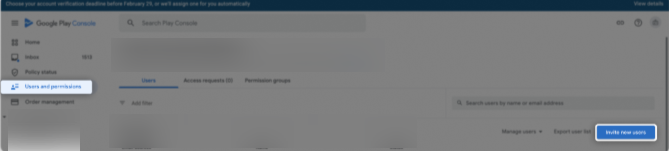
- In the Users and permissions section, click Invite new users.
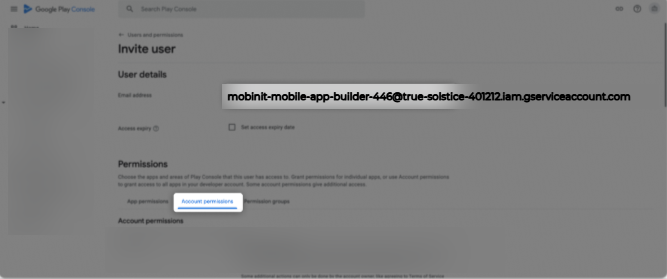
- You will be redirected to the Invite User page. Paste the email address copied in Step 16 into the Email address field, then click the Account permissionstab.
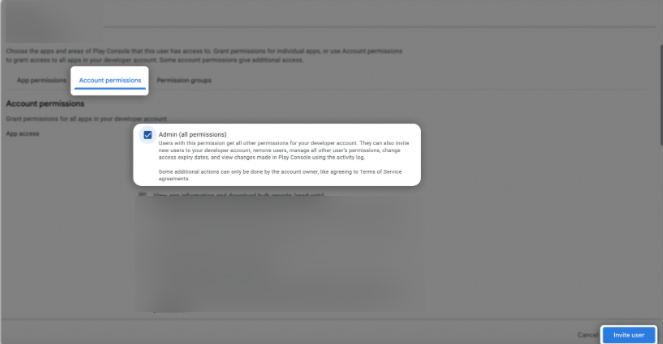
- Select Admin (all permissions) and click Invite user.
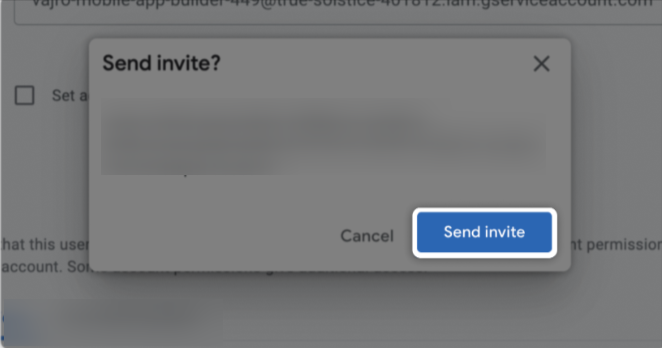
- Click Send invite.
- Open the Account details page from the left navigation menu.
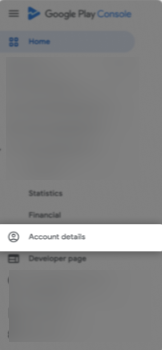
- Scroll to the bottom of the page and copy the Developer account ID. Note that this will be required during the key submission.