Mobimint

Retrieval of p8 file – iOS

Skip to main content
< All Topics
Print

Sharing the API key is crucial as it improves app performance through app updates, strengthens app security, and streamlines app management. This help document provides detailed step-by-step instructions on how to create and share the API key for iOS apps.

Step 1: Log in to App Store Connect account.

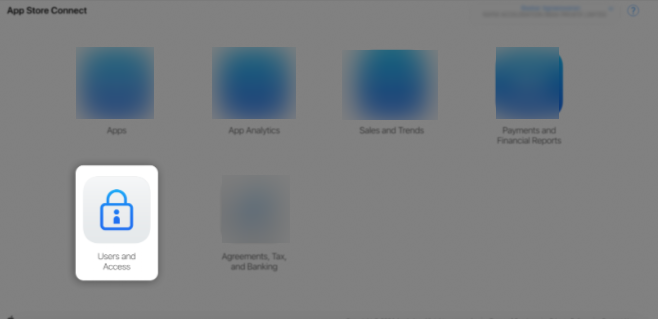
Step 2: Click on Users and Access.
Sample Image

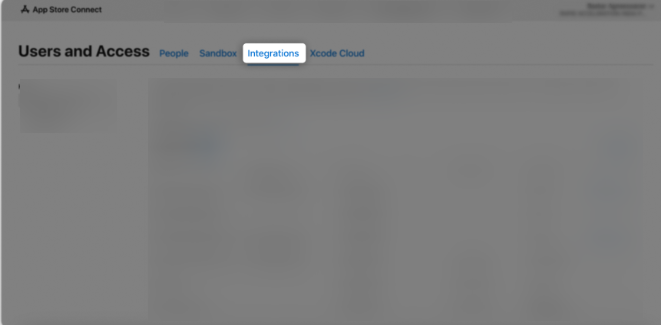
Step 3: Click on the Integrations tab.
Sample Image

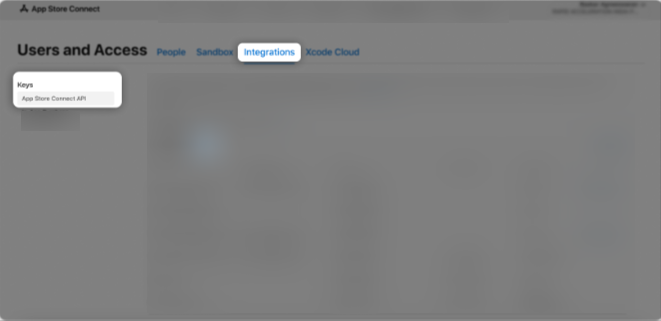
Step 4: In the Keys section, select App Store Connect API, then click the “+” (Add) button.
Sample Image

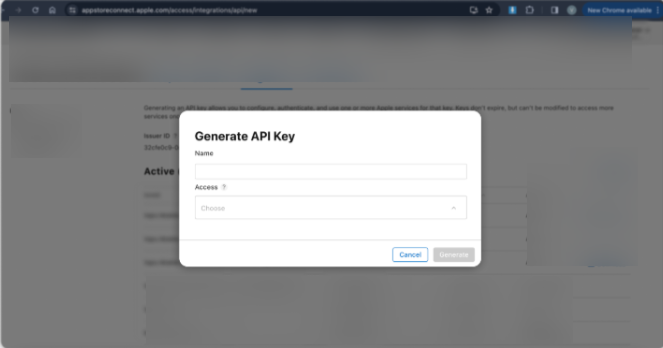
Step 5: A Generate API Key pop-up window will appear.
Sample Image

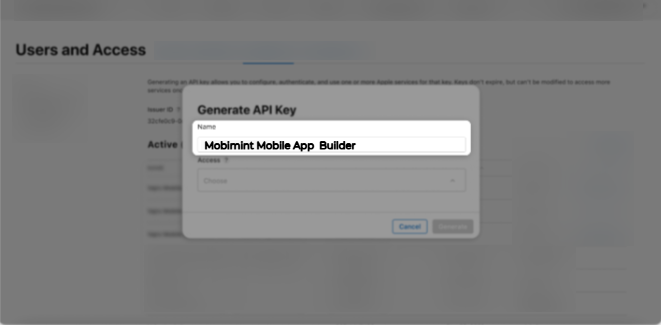
Step 6: Enter “Mobimint Mobile App Builder” as the API key name.
Sample Image

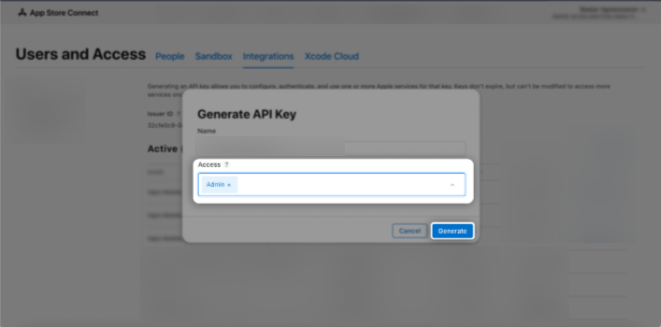
Step 7: In the Access section, choose the Admin role for the key, then click Generate.
Sample Image

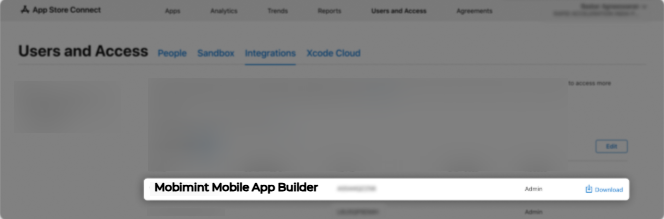
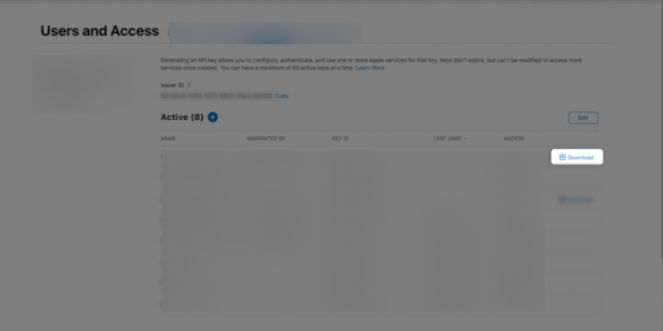
Step 8: The newly created key’s name, Key ID, download link, and other details will be displayed.
Sample Image

Step 9:Click the Download button to save the API key as a .p8file on your system. Then, upload this file to the dashboard.

Sample Image

Table of Contents
Scroll to Top

Turn your store into a mobile app

Build feature-rich Android & IOS apps for your store in minutes.

Trusted by 10,000 +

Shopify & WooCommerce Merchants

1
Choose Platform
2
Store Informations
3
Last Page

Choose Your Platform

Select the platform your store is built on

We don't store your store access details without your permission your data is secure with us

1
Choose Platform
2
Store Informations
3
Last Page

Select Informations

Please provide your store details

Store URL *
Entre your store URL (e.g. yourstore.com)

Do you have an existing mobile app?

Approx. Monthly Orders (Optional)

1
Choose Platform
2
Store Informations
3
Last Page

Contact Information

Name *
Email Address *
Phone number *

Thank You!

Your request has been submitted successfully.

Our mobile app expert will contact you within 24 hours.