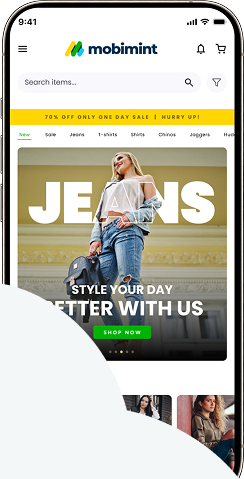
In the Design Editor, the third section is called Change Content. Here, you can add widgets to make your home page more engaging, including live replays, Instagram feeds, and multiple product display options.
Pricing
Users on any plan can use the Change Content section.
You can find the entire list of home page widgets by reading this article.
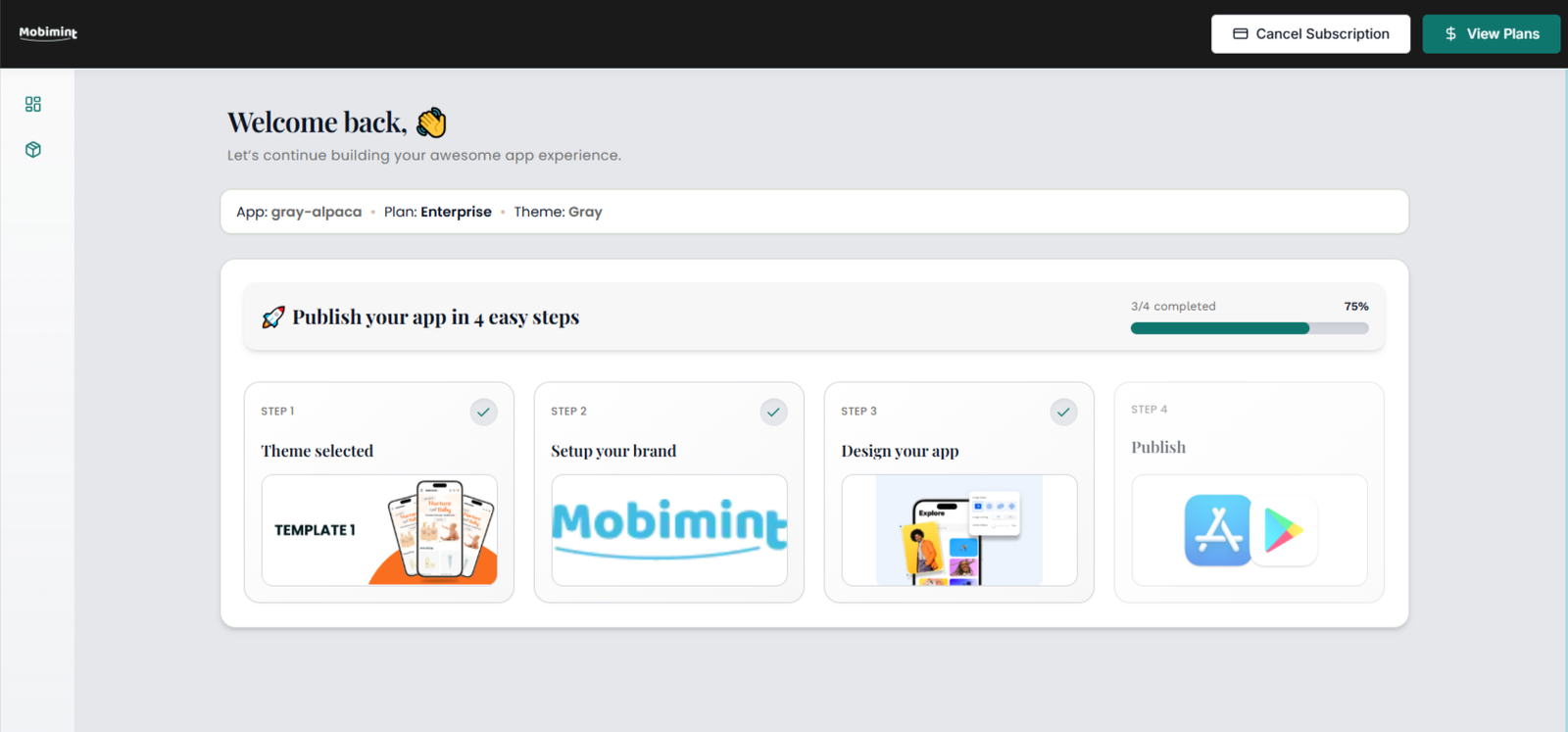
To open the Change Content section, navigate to Mobimint dashboard > Design Editor > Change Content.
Editing a widget
Tap on the widget you want to edit. For this demonstration, we’ll be working with an auto slider images widget.
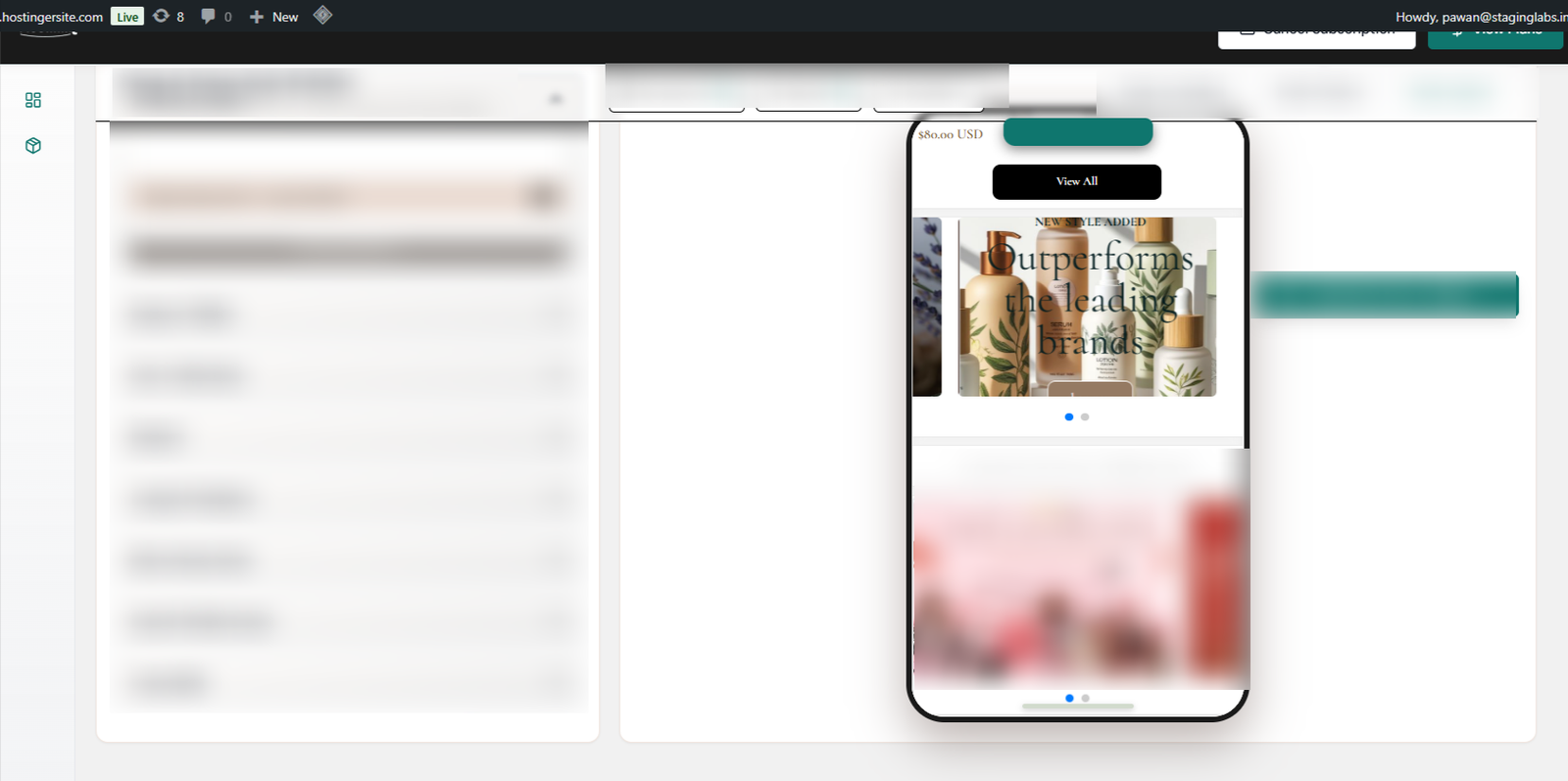
To add a new image to this widget, click on the Add new Slider button.
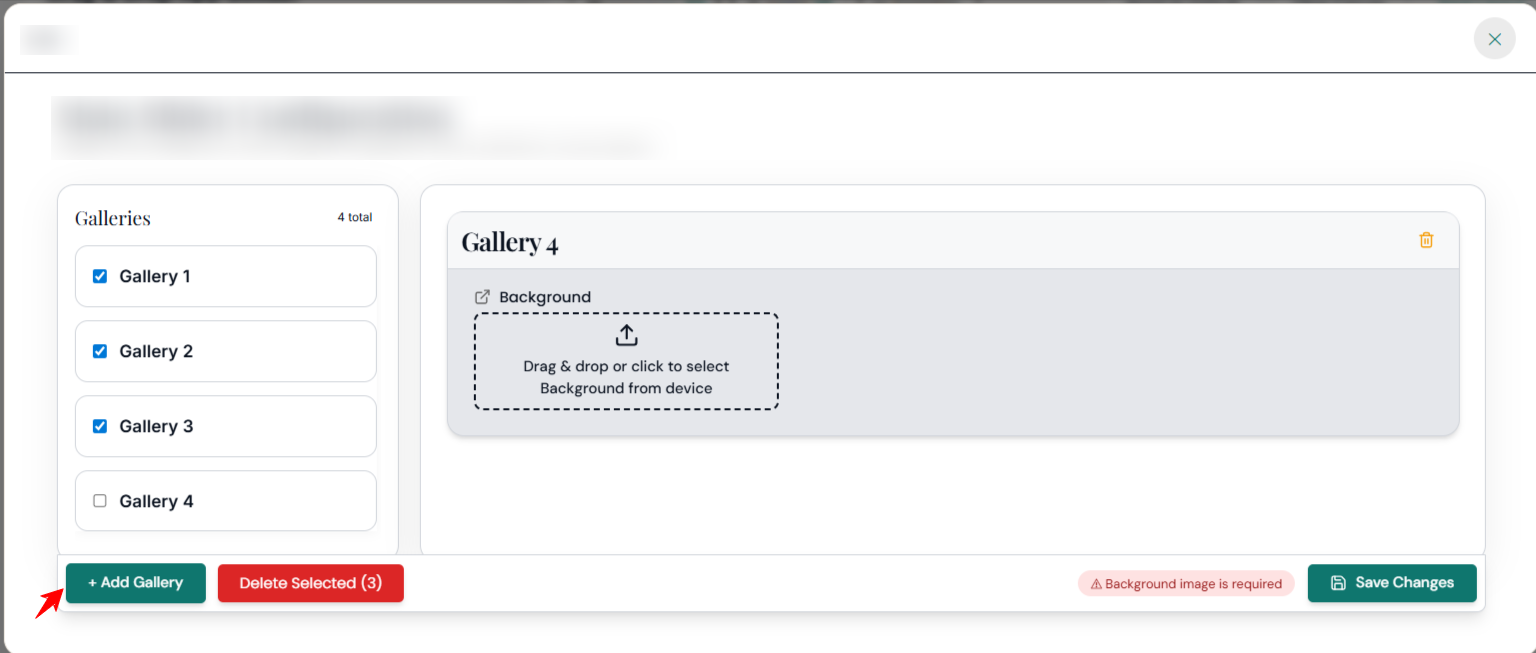
All you need to do is drag and drop an image into the dialog box that pops up on your screen.
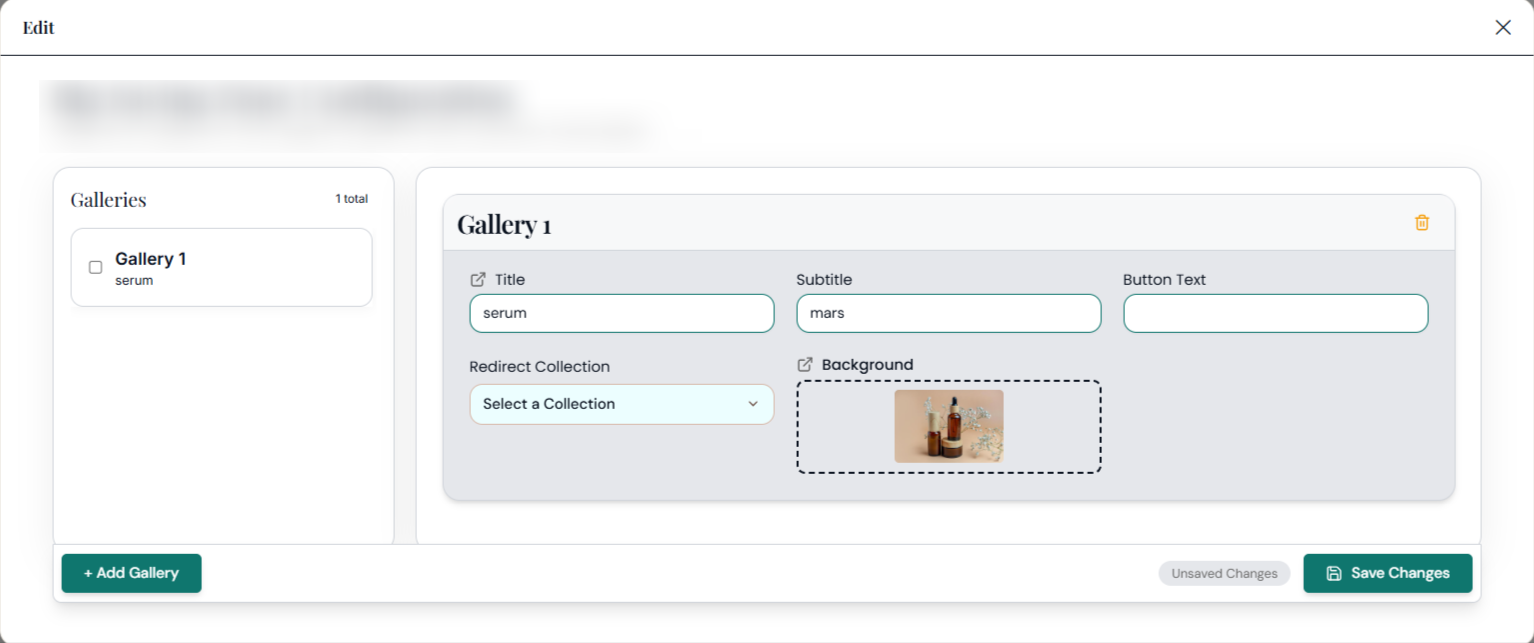
For more options, click on the Settings button.
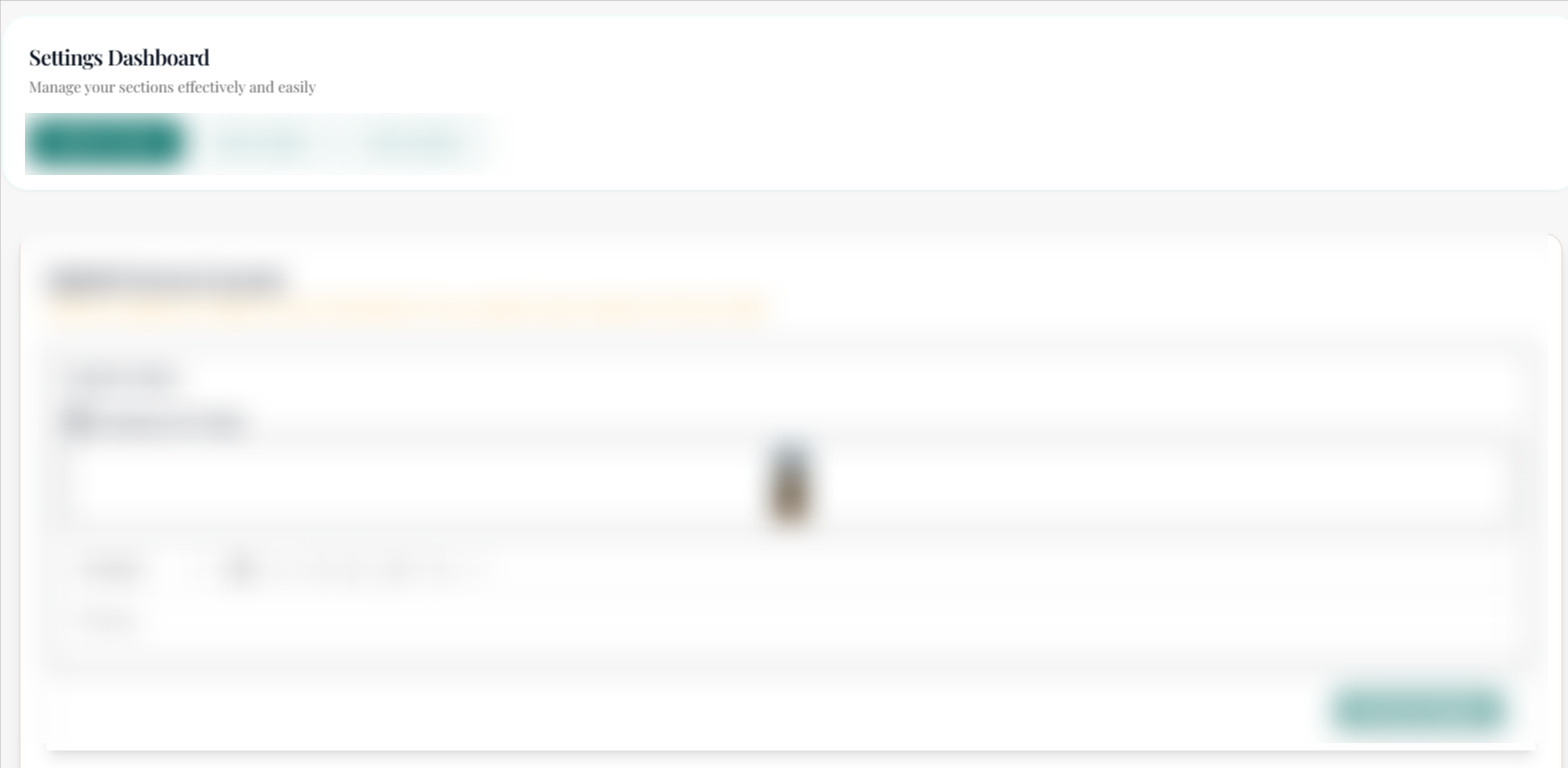
Duplicate: Make a copy of the widget along with the settings
Hide: Hide the widget on your home page
Schedule: Schedule the start and end date of the widget
Delete Layout: Delete the widget
Editing elements in the widget
Let’s take a look at the icons at the top of the image.
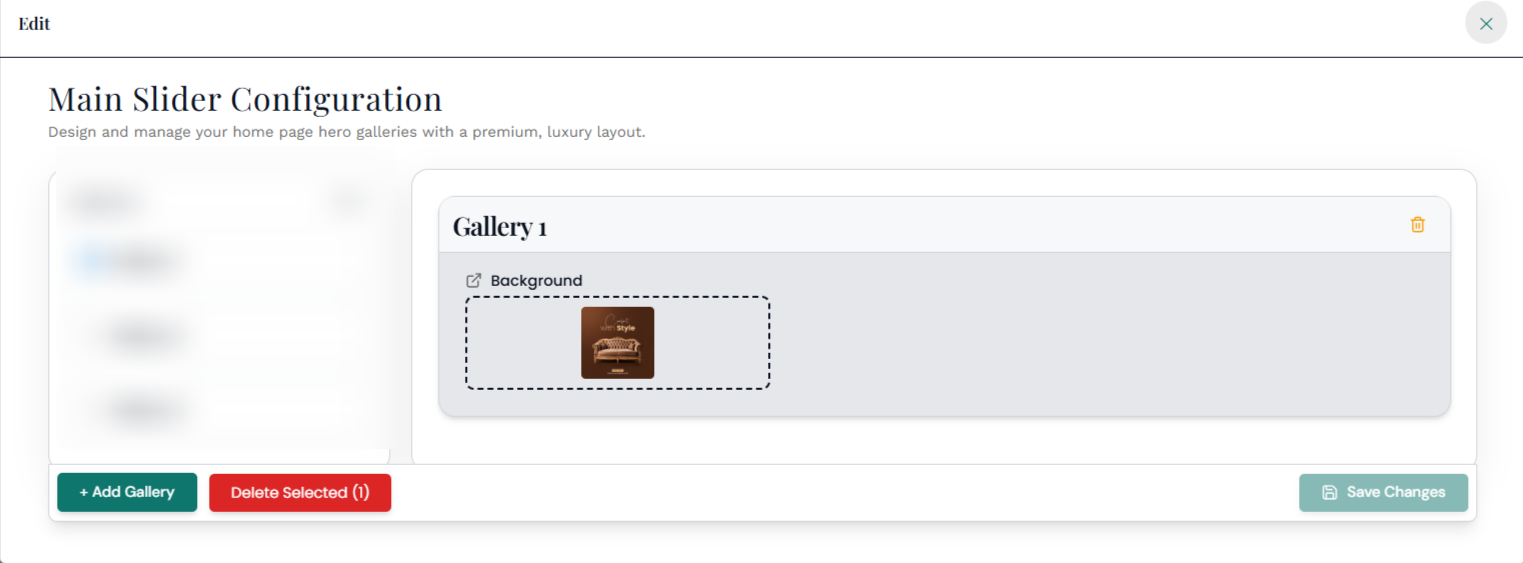
The first icon lets you upload images to the widget.
The second icon allows you to add a redirection link to the selected image.
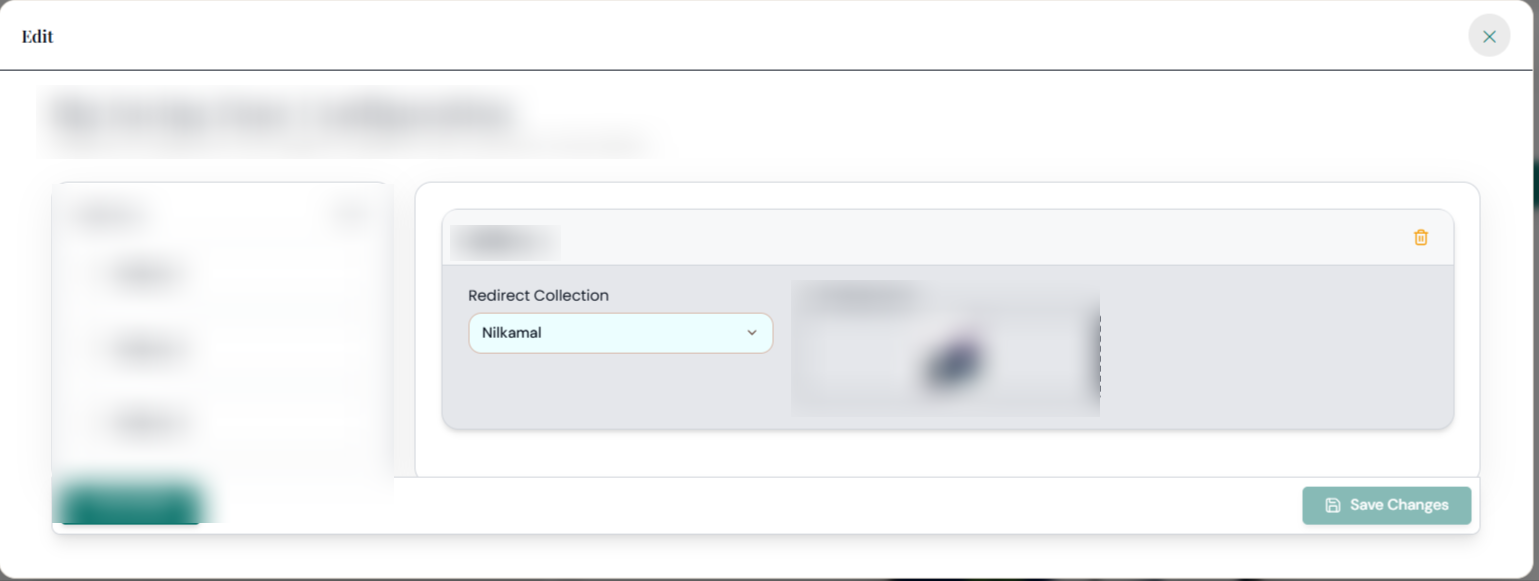
Clicking on the last icon deletes the selected image from the widget.
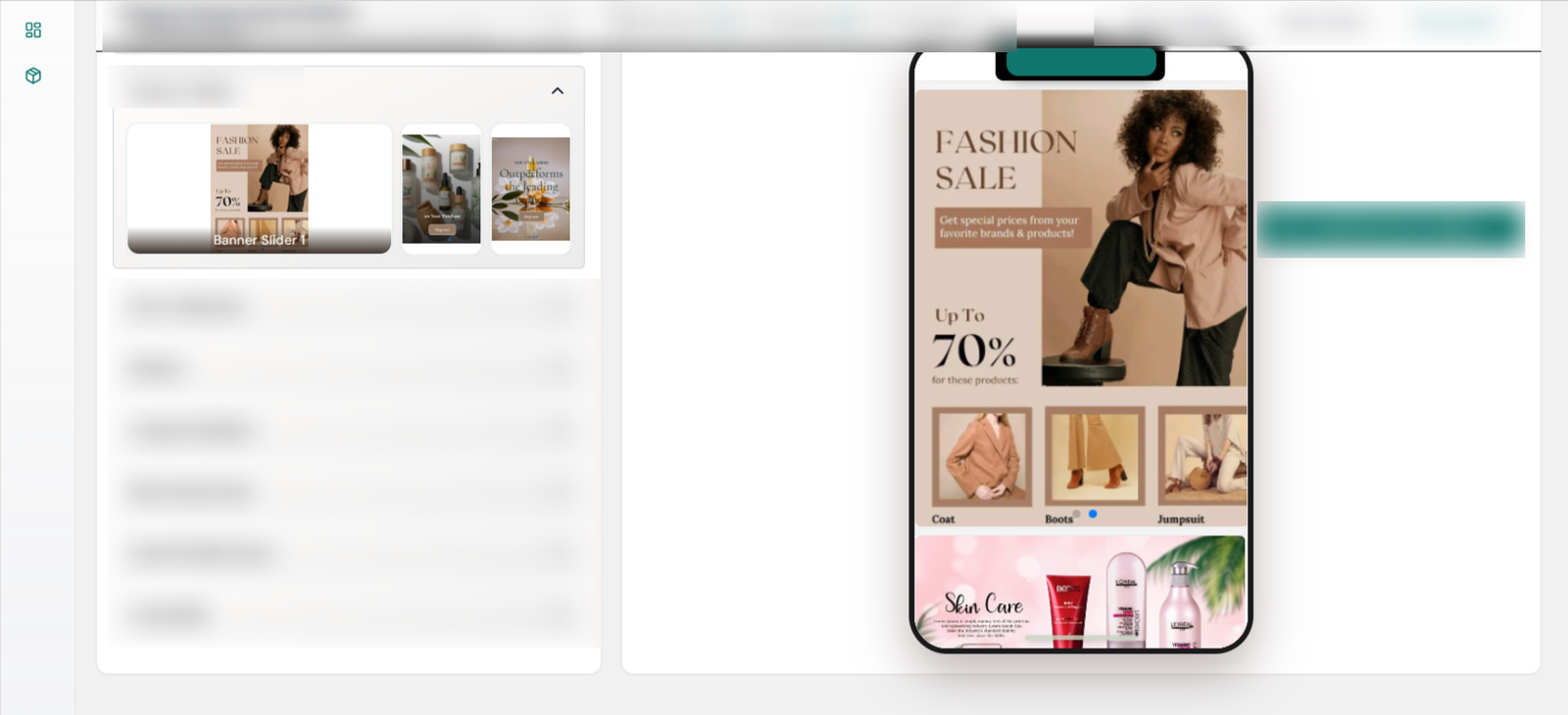
Here’s what the slider image will look like on the app:
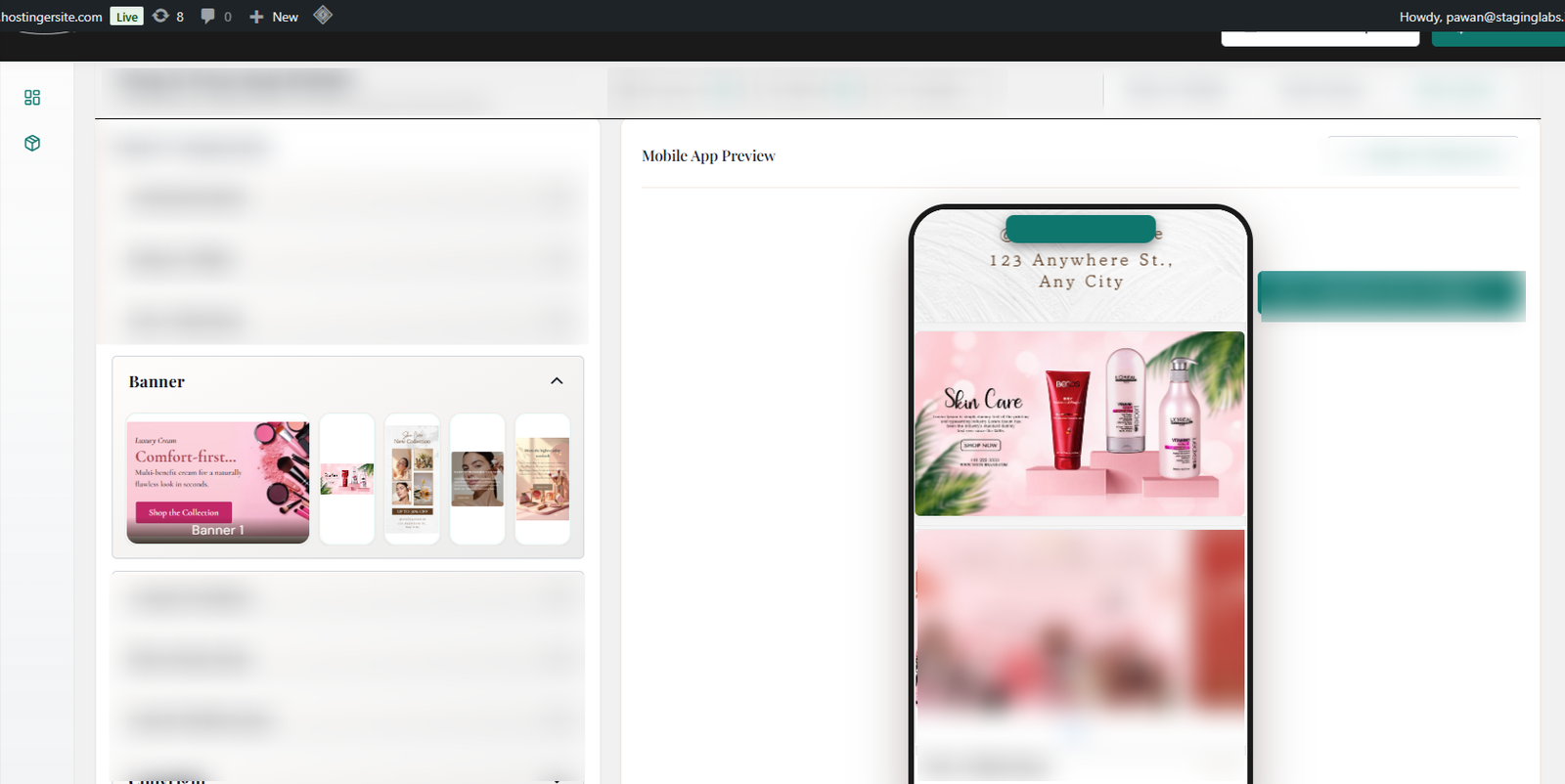
This is how widgets such as Image Sliders, Image Grids, and Product Banners work. Add the right collection/product page links to these widgets.
That’s all there is to know about the Change Content section. If you’d like to navigate to a help doc for a different part of the Design Editor, click here.
Got questions about this article? Hit us up using the chat button on your Mobimint dashboard, or write to us at support@staging.mobimint.co.