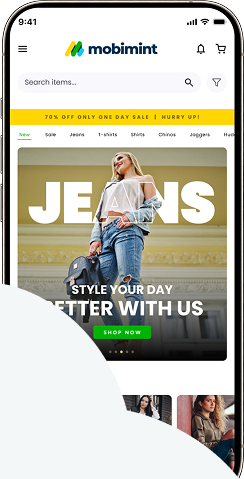
In the design editor, the second section is Personalize Branding. This tool helps you adapt the mobile app’s design to your brand, giving you control over the theme colors, CTA styles, cart icon, and toolbar to maintain consistency with your brand image.
Pricing
The Personalise Branding area is provided for all users to use.
Begin by accessing the Mobimint dashboard, then go to Design Layout and select the Launchboard option.
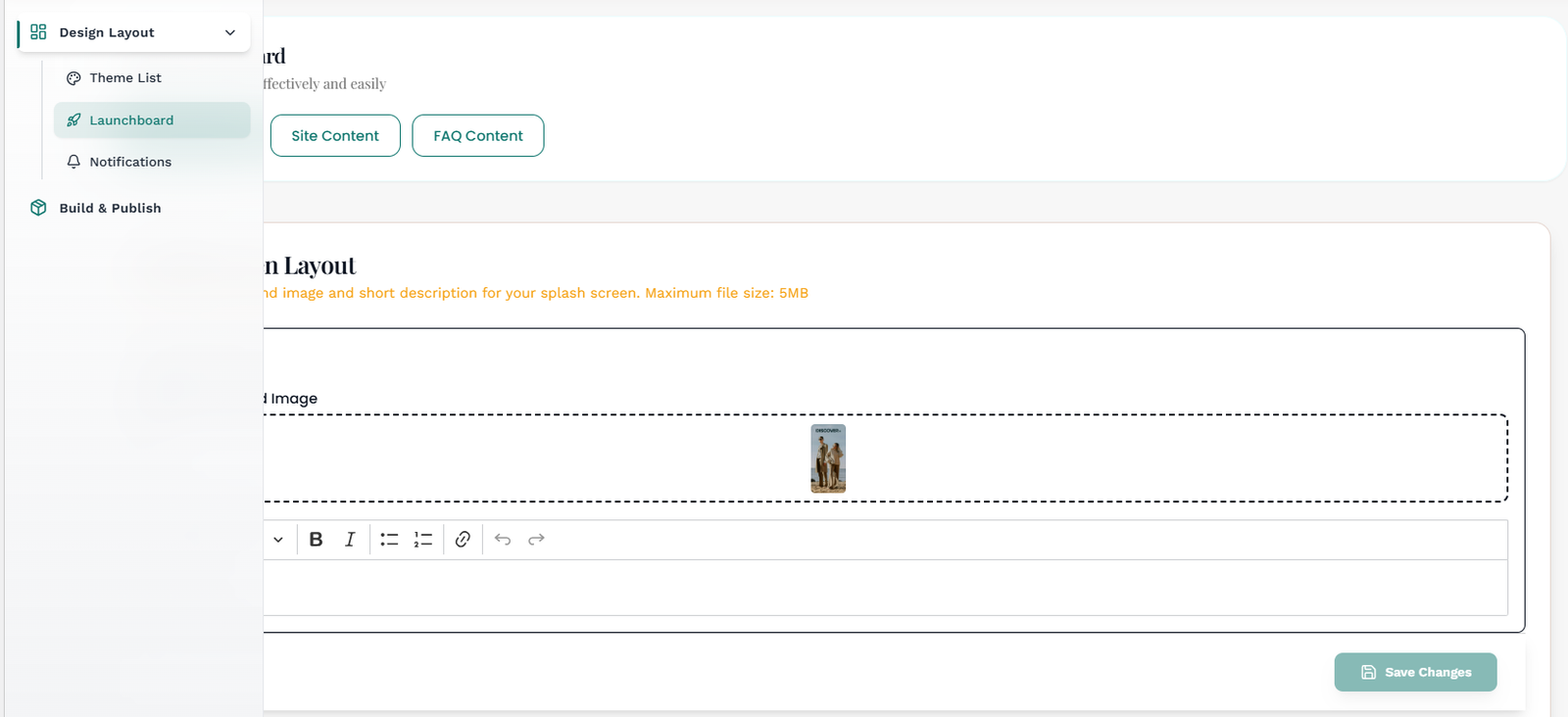
Add your preferred app name in the Enter your App Name box to show it on the top bar of the mobile app.
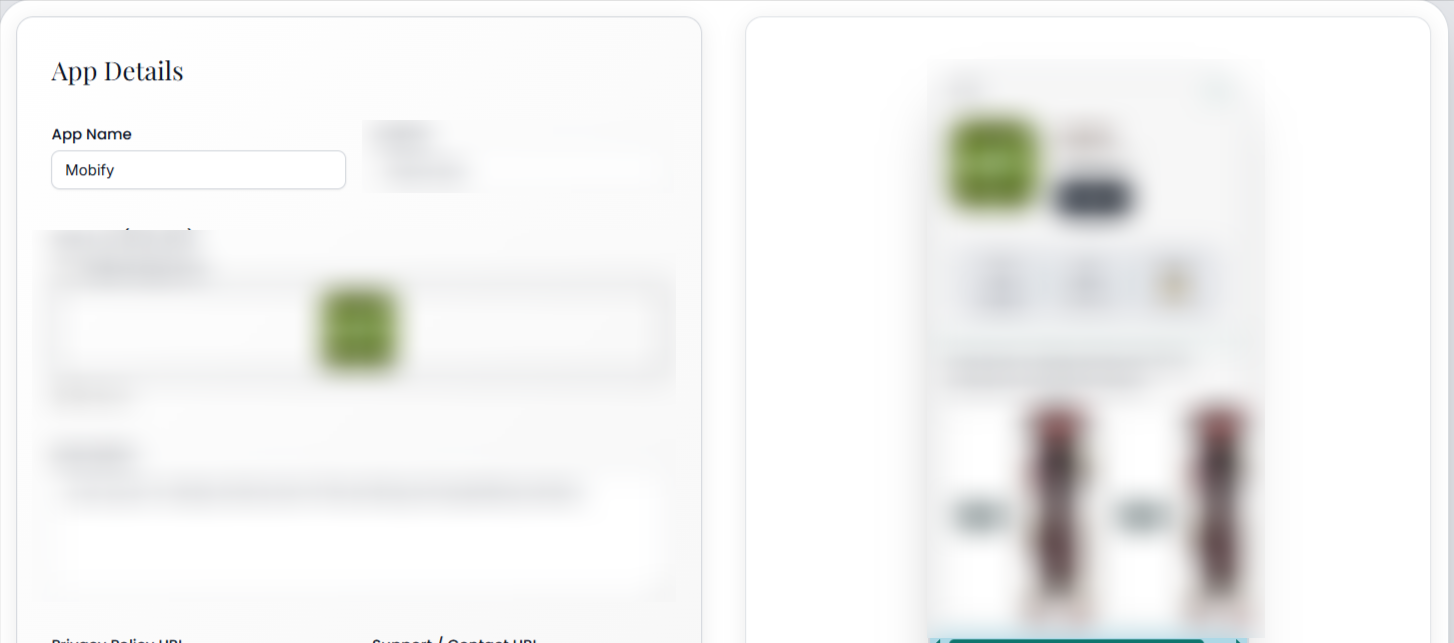
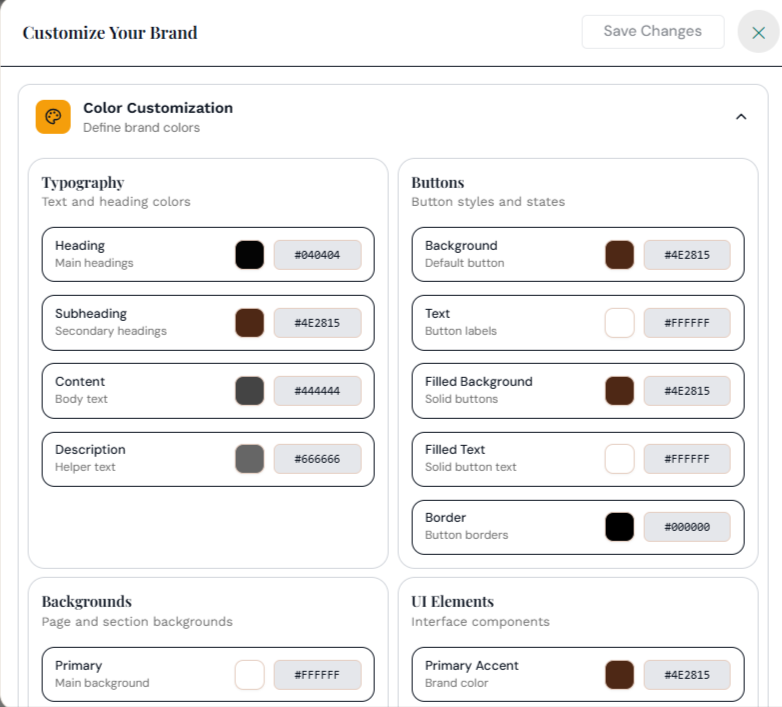
Pick out your brand colors – Set the Overall Theme Color, Button Color, Cart Icon’s Badge Color, Cart Icon’s Badge Text Color, and finally the Toolbar Text Color.
- Overall Theme Color refers to the entire color scheme of your app.
- Button Color is the color of the CTA buttons on the app.
- Cart Icon’s Badge Color is the color of the notification on the cart indicating the number of items in
the cart. - Cart Icon’s Badge Text Color is the color of the text in the badge.
- Toolbar Text/Icon color is the color of the navigation menu icon.
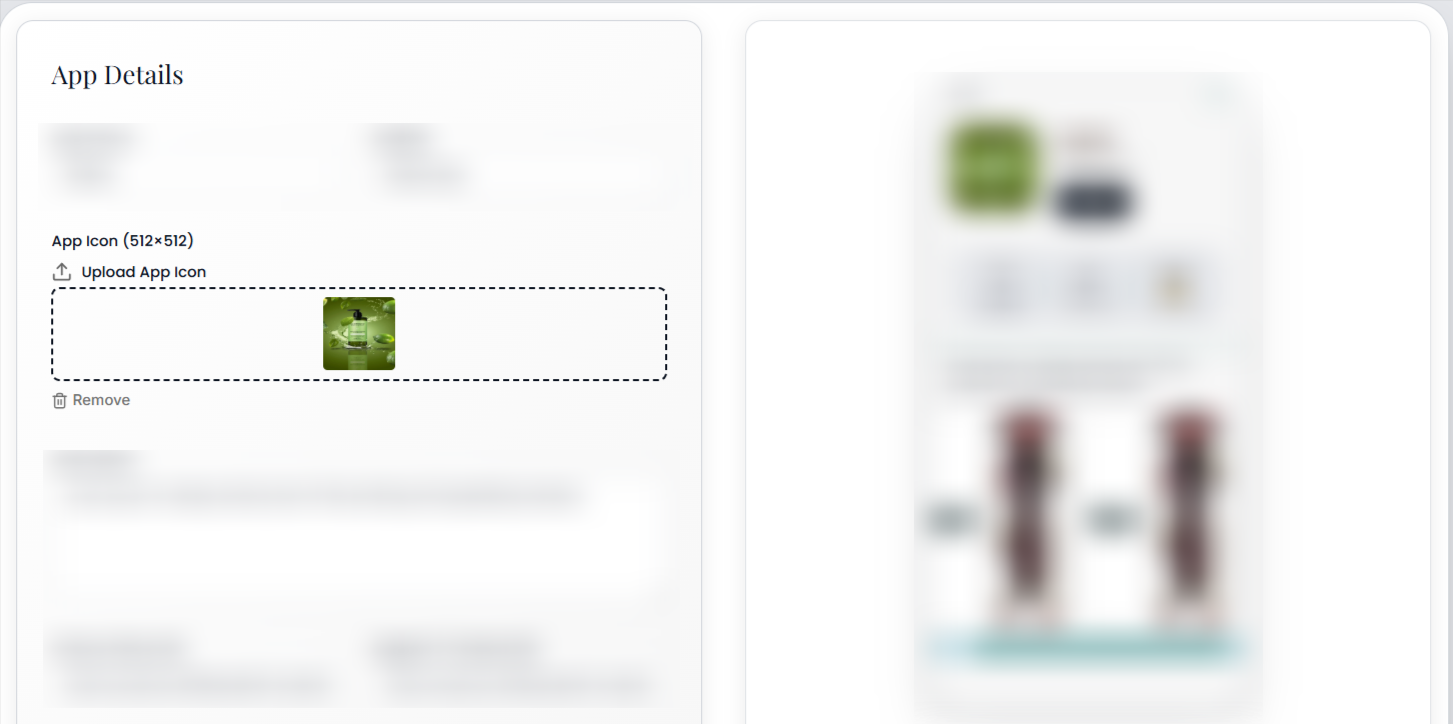
Use the App Icon Logo field to upload your logo.
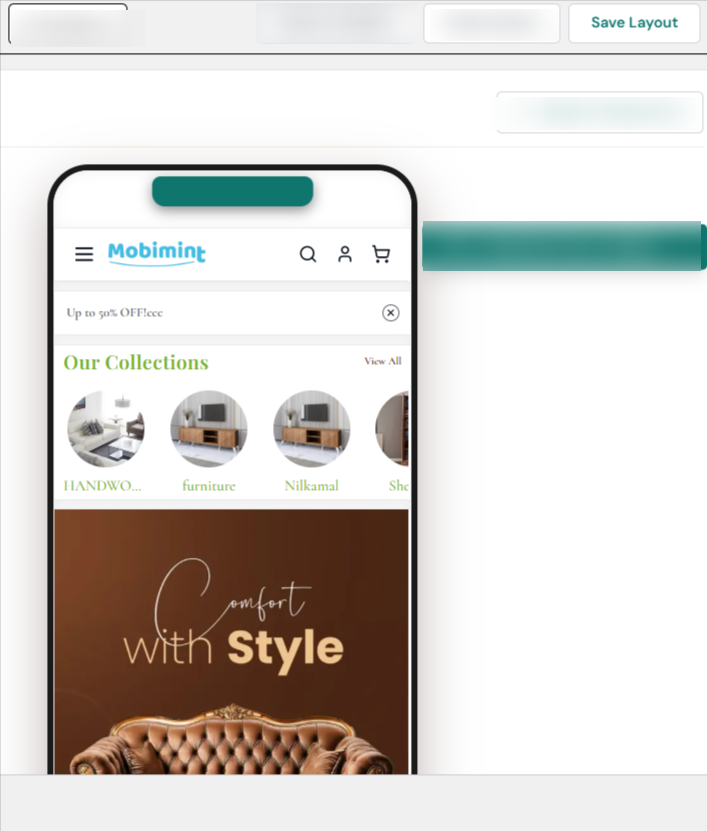
After making your changes, select Save Layout to see them reflected instantly in the preview pane on the right.
You’ve finished the Personalize Branding section. Click here to navigate to another help doc in the Designing Your App collection.
If you need help with this article, use the chat on your Mobimint dashboard or send us an email at support@staging.mobimint.co