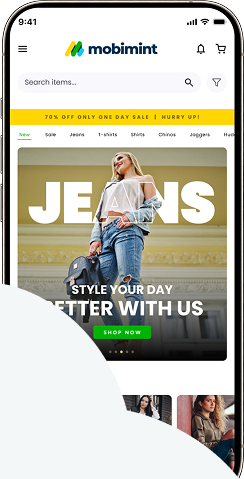
Your domain host is the internet service that manages your website or the platform you bought the domain from. Your emails should have billing records and invoices related to the registration or transfer of domains.
If you’re unable to find your domain host, you can use a site like ICANN.
Visit: https://lookup.icann.org/ and enter your website’s URL.
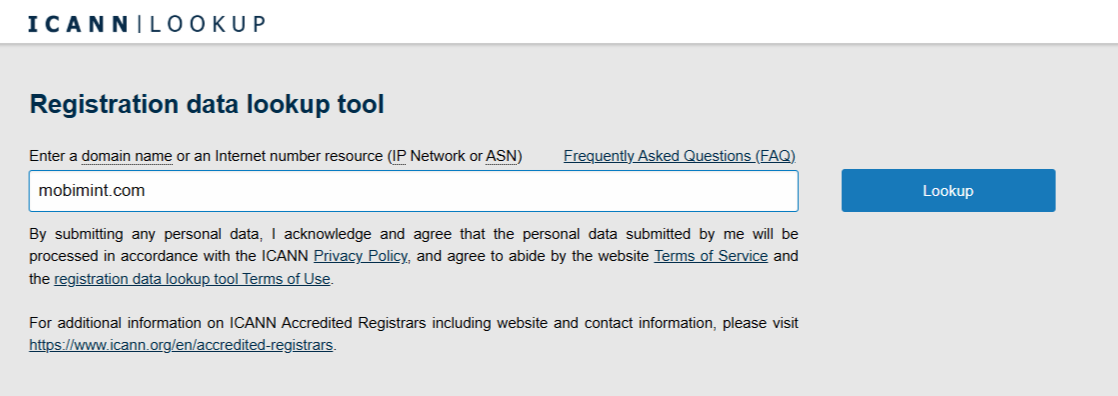
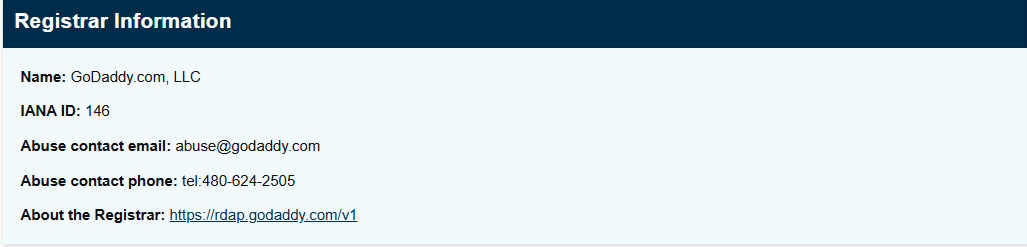
Click on the Lookup button and you’ll find details about your domain like created date, expiration dates, and more. Perhaps, a little too much information. Scroll down to the Registrar Information section and you’ll find your domain host.
Alternatively, you can find the domain purchase receipt by signing in to your domain host service. Go to your Billing page and download the invoice in PDF format.
GoDaddy – Download a Receipt
Step 1: Visit your GoDaddy Order History Visit your
Step 2: Select the checkbox next to the receipt you want to download.
To download all receipts in a single file select the checkbox located in the top-left corner of the page.
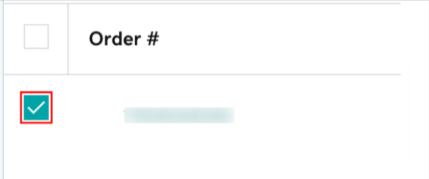
Note: If you experience any issues while downloading all receipts at once, try selecting a smaller number of receipts.
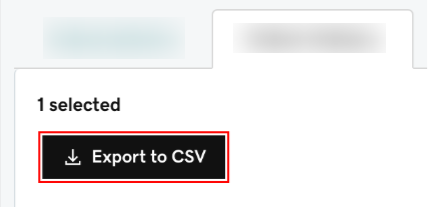
Step 3: Click Export to CSV. The file will then be downloaded to your device.
Print a receipt
Step 1: Visit your GoDaddy Order History page. You may need to sign in before continuing.
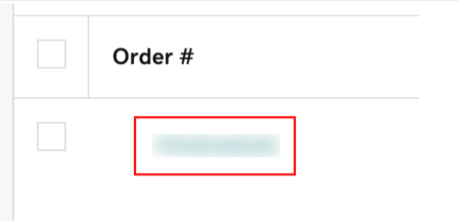
Step 2: Click on the Order # of the receipt you want to print. The receipt details—including the billing address, payment information, and purchased product—will be displayed on your screen.
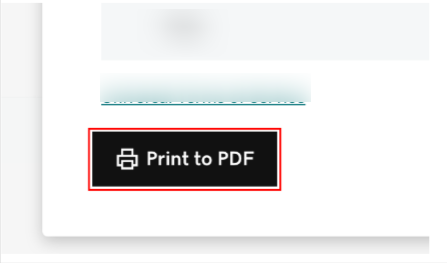
Step 3: Choose Print to PDF. The receipt will open as a PDF file, which you can then print.
Namecheap
You can view the details of any order or transaction directly from your Namecheap account.
Step 1: Sign in to your Namecheap account.
Step 2: From the left-hand navigation bar, open the Profilemenu and go to the Billing section.
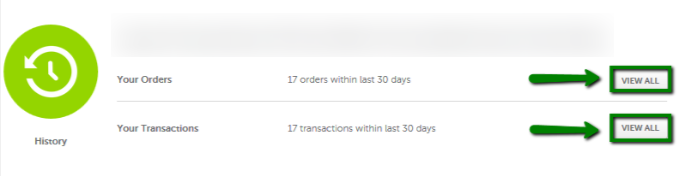
Step 3: In the History section, you can review your Order HistoryandTransaction History.Click the relevant View Allbutton next to Your Orders or Your Transactions, depending on what you want to check.
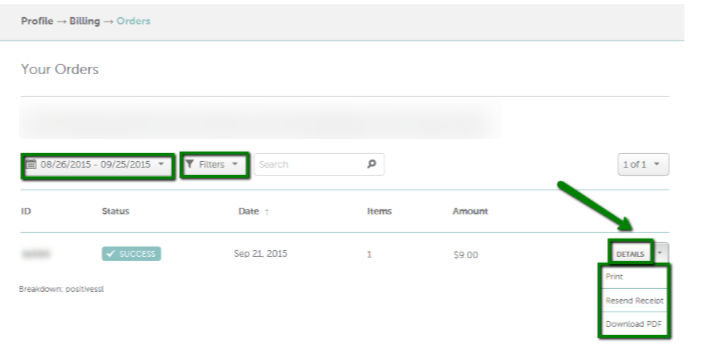
Step 4: In the Filter menu, choose a date range, select a product type, enter a keyword related to the product (such as your domain name), or provide the exact Order/Transaction ID, then click Search.
Step 5: On the Order page, you can print the receipt, resend the receipt, or download the order as a PDF file.
Step 6: On the Transaction page, you can view the payment method used and the order linked to that transaction.
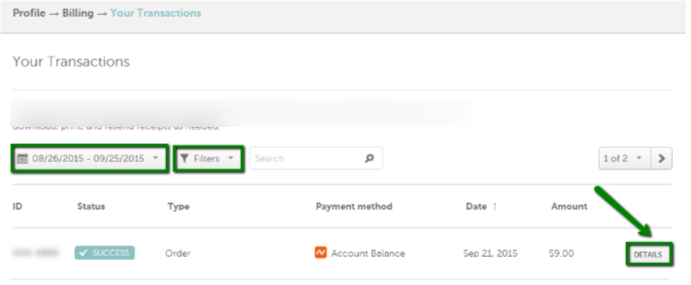
Additionally, you can click Details to view more information about the order or transaction.
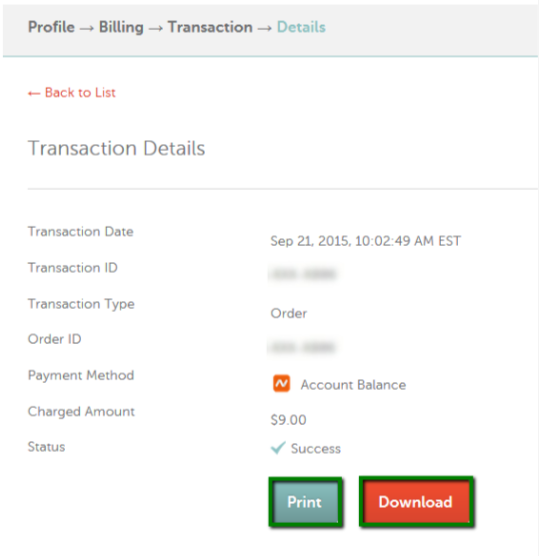
In the Details section, you will see the purchased product, order summary, and service duration. From this page, you can also print, download, or resend the receipt. The receipt can be viewed in PDF format, allowing you to print it later or have it resent to the email address associated with your account.
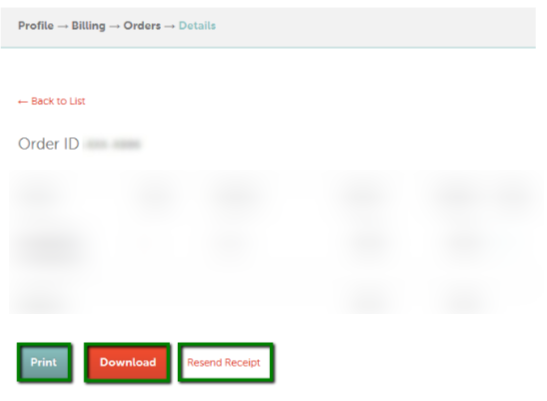
In the Details section of the transaction, you can view the order linked to that specific transaction, the payment method used, and other relevant information. From there, you can also print or download the transaction details.
Google Domains
Google Domains charges the payment method linked to your account whenever you purchase, renew, or transfer a domain.
Step 1: Sign in to your Google Domains account.
Step 2: Open the Menu.
Step 3: Select Billing.
Step 4: Review your transaction history, which includes the date, transaction ID, description, and total amount.
Domains.com
Step 1: Log in to your Domains Dashboard .

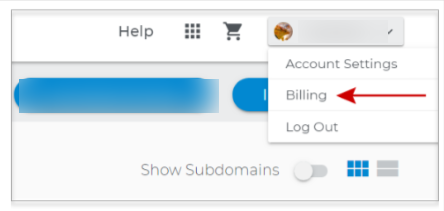
Step 2:Click the drop-down arrow next to your username and selectBilling.
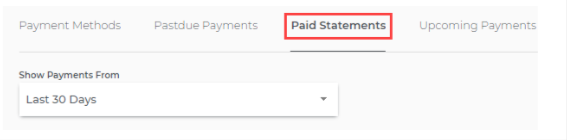
Step 3:YourBilling Informationpage will display payment methods, past-due payments, paid statements, and upcoming payments.
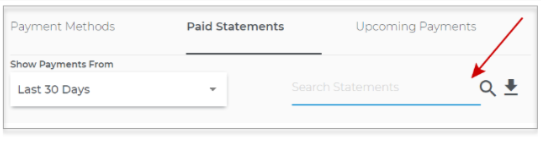
Step 4:Select the type of document you want to download—for example,Paid Statements from the last 30 days.
Step 5:Use theDownloadbutton on the right to choose the file format, either CSV or PDF .

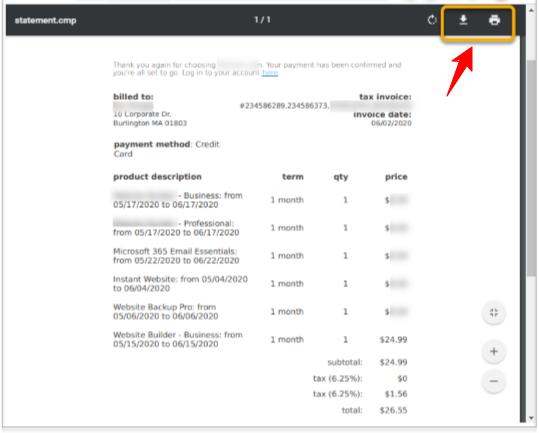
Step 6:If you selectPDFthe document will open in a new browser window. Hover over the page to access options to download or print it.
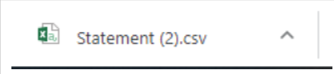
Step 7:If you selectCSVthe file will appear at the bottom of your browser for download.
Step 8:If you cannot find the document you need, use thesearch functionto locate specific statements.
Shopify
Step 1:Sign in to youShopify adminaccount.
Step 2:Go to theBillingpage.
Step 3:You will see a list of your recent bills. Select the appropriate bill toview or downloadit.