Skip to main content
How Can We Help?
-
Designing Your App
-
Push Notifications
-
Live Selling with Mobify
-
Launching Your App
- How to Find Your Domain Purchase Receipt
- Guidelines for a seamless Store Listing process
- Getting Your Store Listed
- Store Listing Description Templates
- iOS & Android Apps Getting Rejected? Here are the reasons and solutions!
- How to get a DUNS Number for your business
- Steps to create and share the API Key of your iOS app with Mobimint
- Steps to create and share the API Key of your Android app with Mobimint
- Creating a Google Play Developer Account
- How to create an Apple Developer Account - A Step-by-Step Guide
- Retrieval of Developer Account ID - Android
- Retrieval of API JSON file - Android
- Retrieval of Issuer ID - iOS
- Retrieval of API Key ID - iOS
- Retrieval of Vendor ID - iOS
- Retrieval of p8 file - iOS
- Show Remaining Articles (1) Collapse Articles
-
Admin App
-
Plug-ins and Integrations
-
Billing and Subscription
-
App Building 101
-
Setting Up your Google Developer Account with Mobify
-
Setting up your Apple Developer Account with mobify
Print
Posted
Updated
ByPawan Jain
Mobimint offers 4 pricing plans that are suited to various types of businesses.
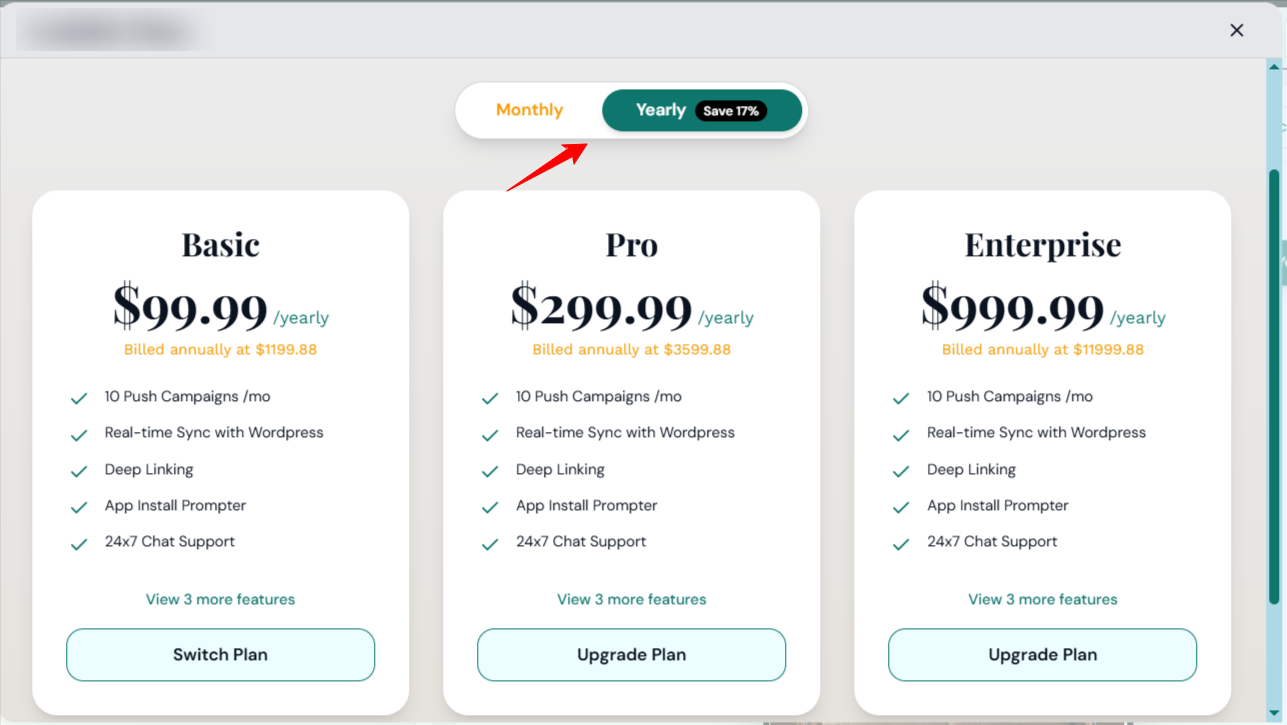
Head over to the Billing section on the Mobimint admin dashboard to see what kind of features are being offered in each plan.
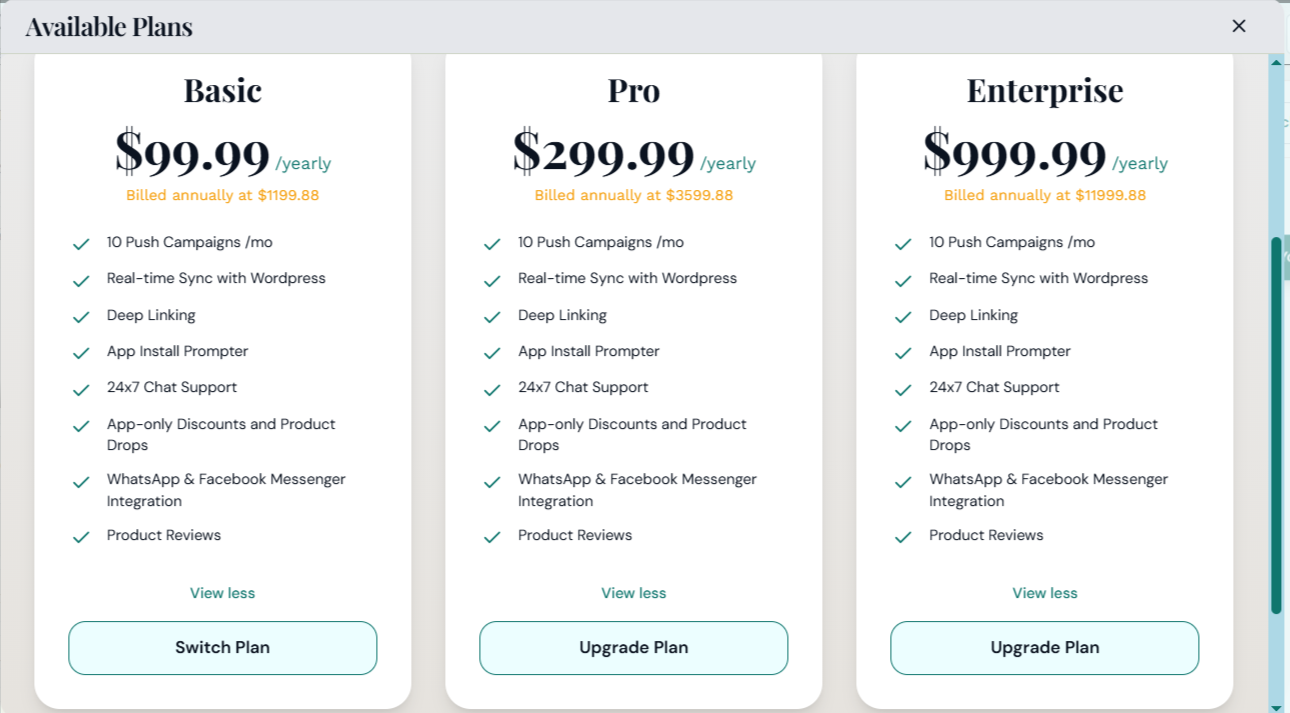
Take a look at what would best for you, and click on “Choose plan” to get things moving.
Click View more to see all the features the plan offers.
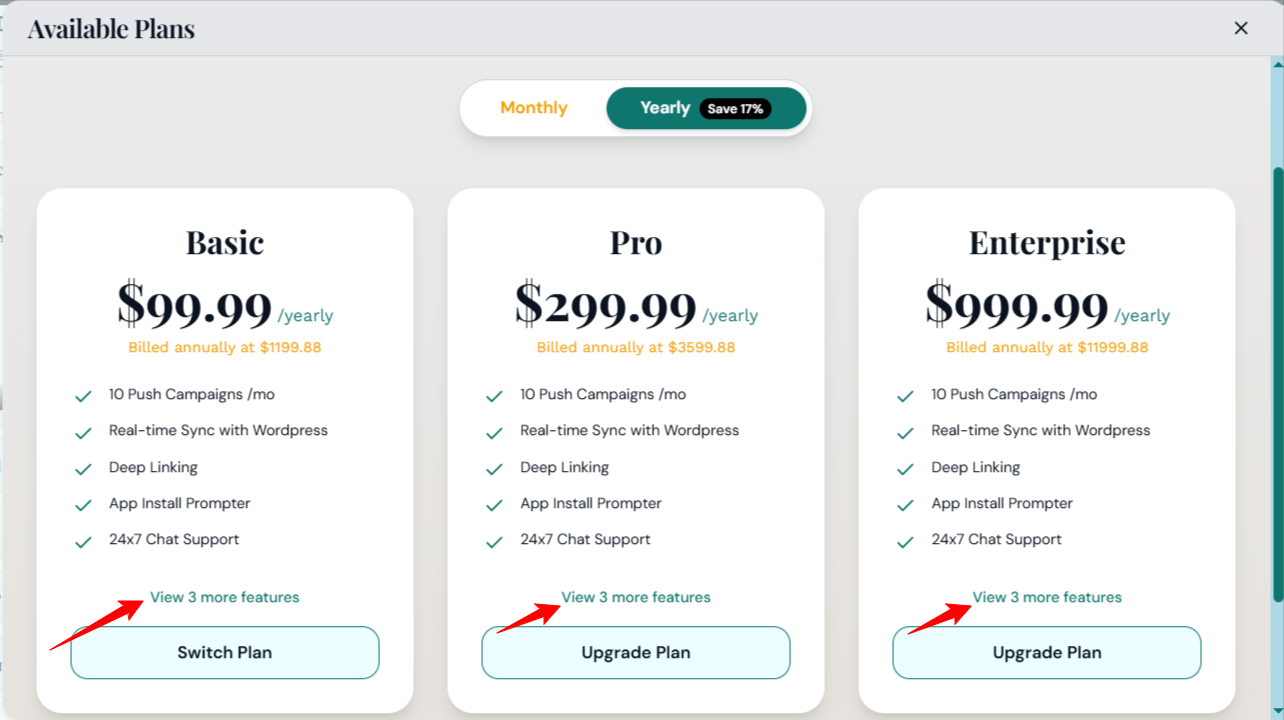
You can choose for the billing to be Monthly or Yearly with the toggle switch right at the top right corner of the dashboard.
- You’ll be redirected to a Shopify page where you’ll be asked to approve subscription.
- Once you’ve taken a look at the overview of the subscription, click on Approve Subscription.
Table of Contents