According to Apple’s guidelines, an Apple Developer Account is now mandatory for e-commerce store owners. Below is a step-by-step guide to help you create an Apple Developer account.
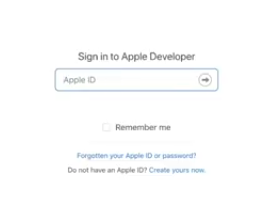
Step 1: Visit the Apple Developer Account enrollment page.
Sign in with your Apple account, or create a new Apple ID if you don’t already have one.
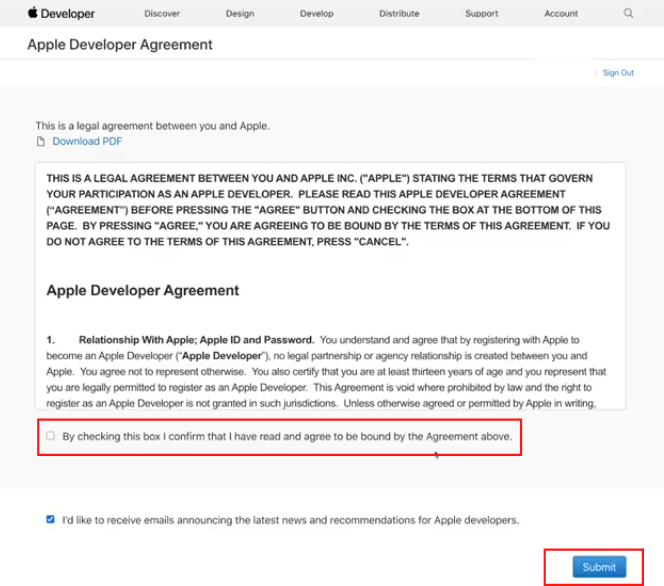
Step 2: You will be redirected to the Terms and Conditions page. Select the checkbox to agree to the terms, then click Submit.
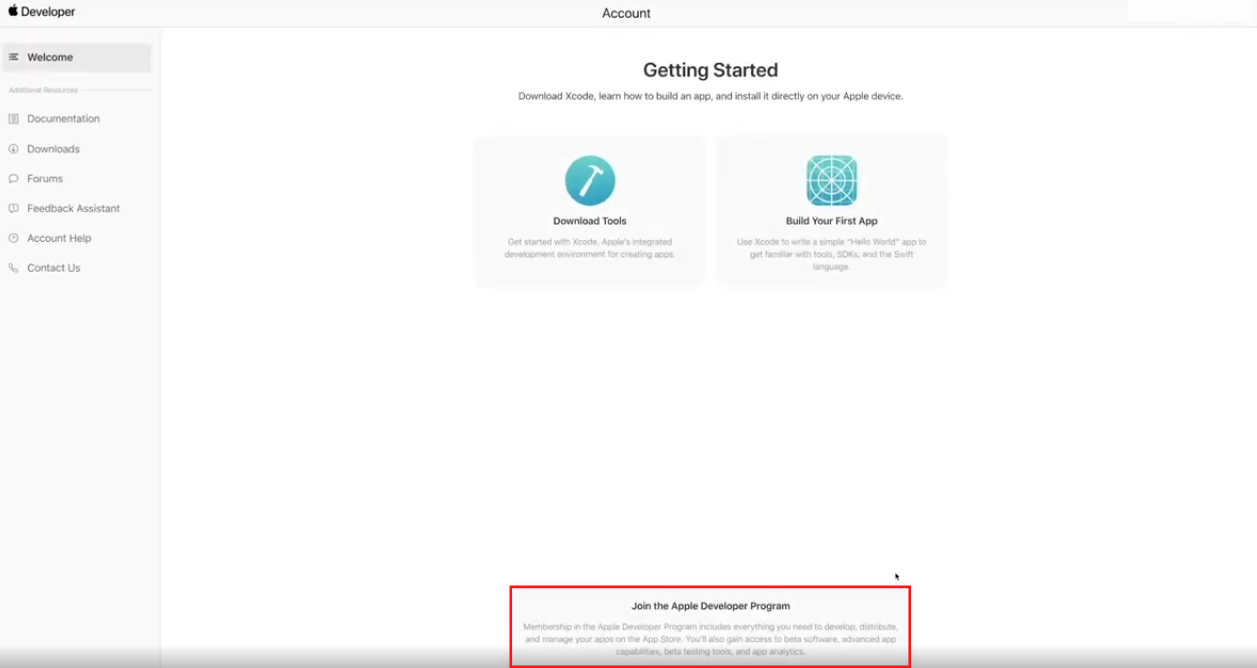
Step 3: You will be redirected to the Apple Developer Dashboard. Click the Join the Apple Developer
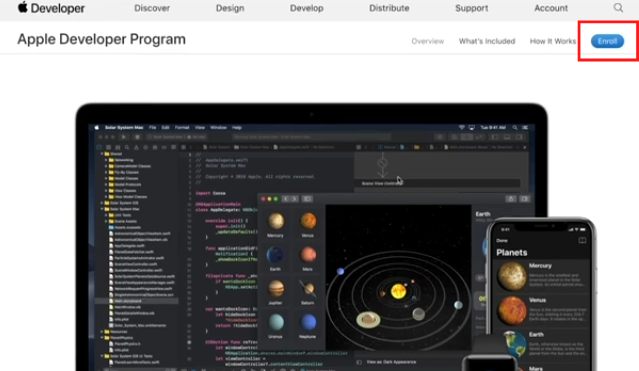
Step 4: Click the Enrollbutton located at the top-right corner of the screen.
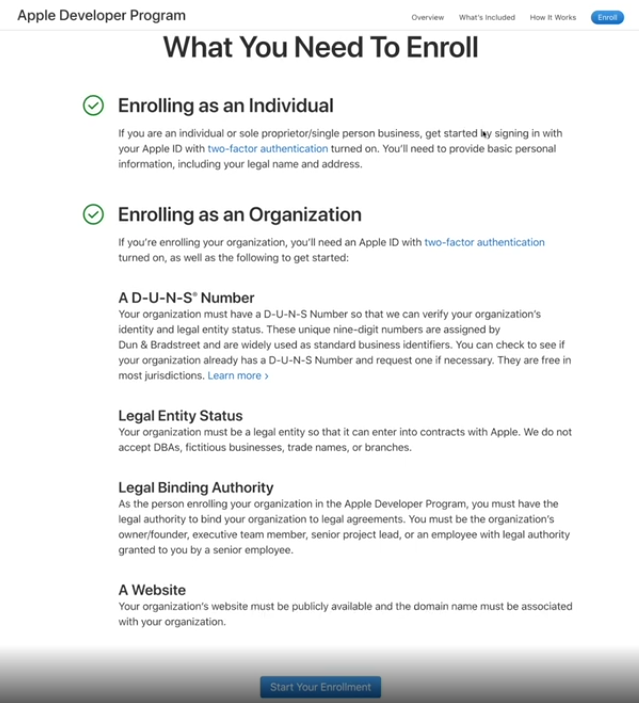
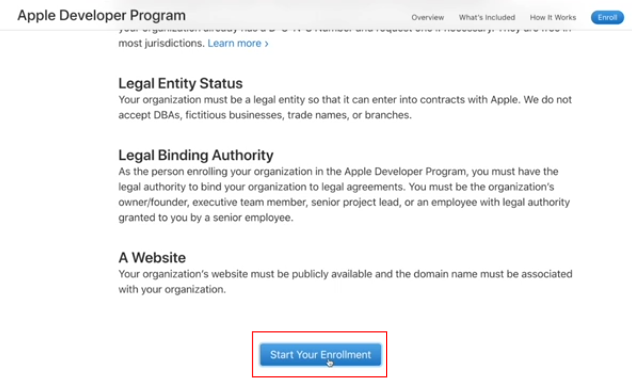
Step 5: You will see the instructions and guidelines for enrolling in the Developer Program. Scroll down and click Start Your Enrollment.
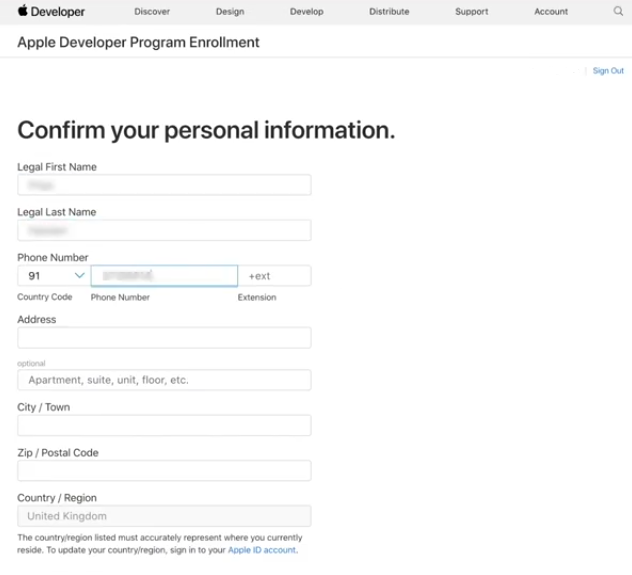
Step 6: Fill in yourpersonal information.
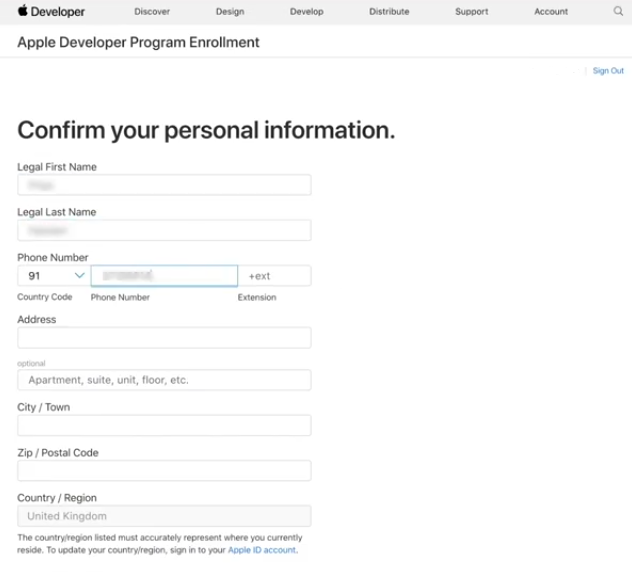
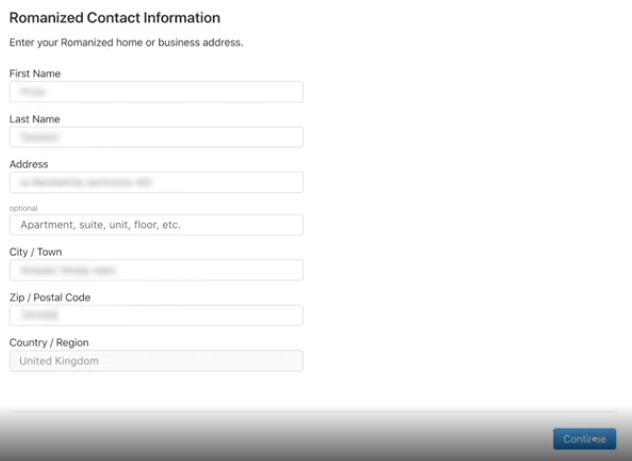
Click on Continue when you’re done.
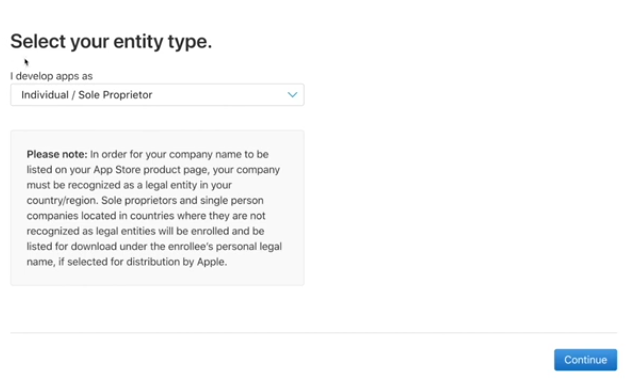
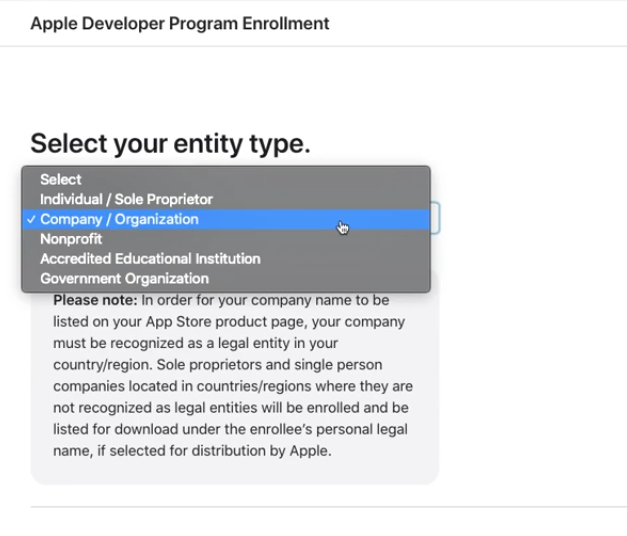
Step 7: Select your entity type.
- If you have a registered company, choose Company/Organization.
- If you don’t have a registered business or operate as a sole proprietorship, select Individual / Sole Proprietor / Single Person Business.
Note: If you choose the individual/sole proprietor option, your Apple ID must be logged in on at least one Apple device (iPhone, iPad, iPod, MacBook, or Mac mini). Continue.
Choose the option that applies to you, then click Continue.
Individual/Sole Proprietor Account
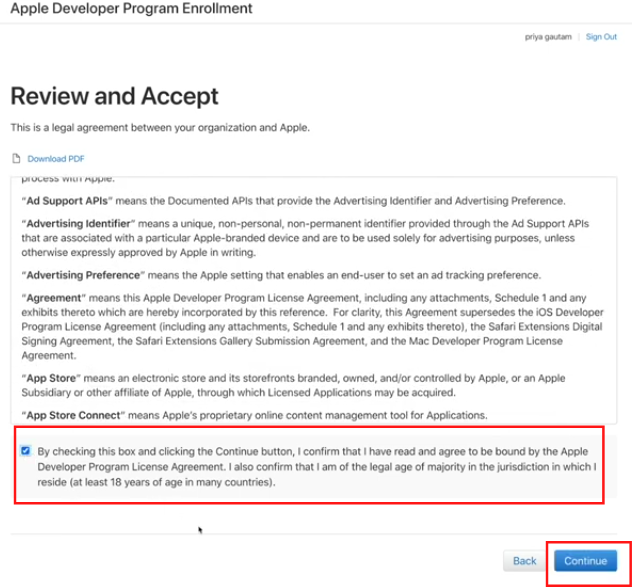
Step 1:Review the policies, check the box to agree to the terms, and then clickContinue.
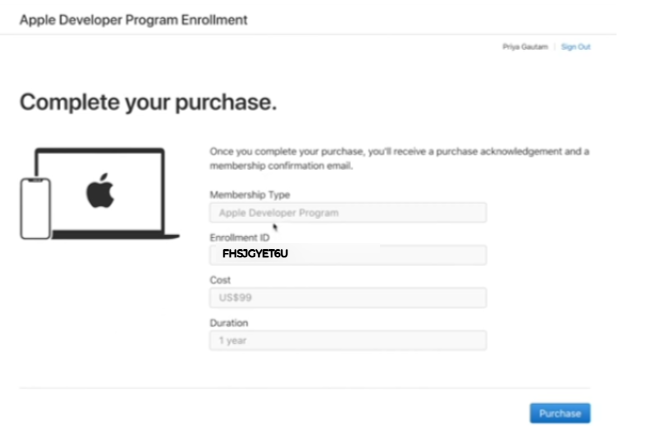
Step 2: Verify your details and click Purchase.
Note: Enrolling in the Apple Developer Program costs $99 per year.
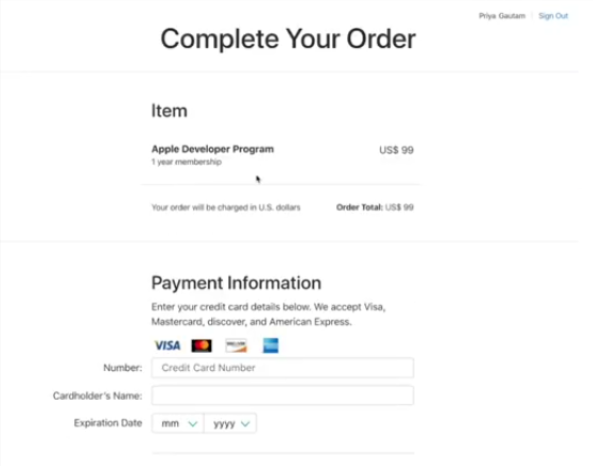
Step 3: Provide your payment details.
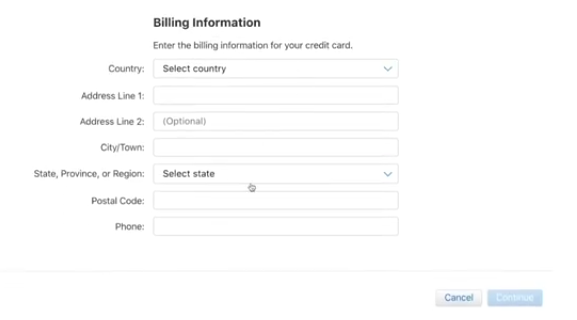
Enter the billing address and click on Continue.
Step 4: Enter your personal informationand clickContinue.
Once your payment is processed, you will receive an email from Apple within 48 hours asking you to activate your account. Click the link in the email to complete the activation.
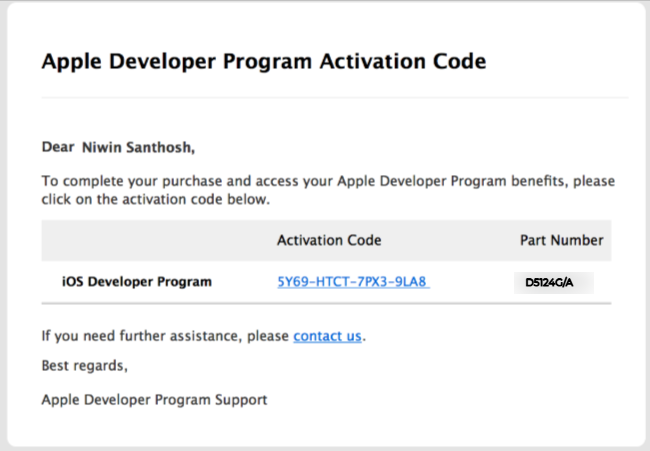
Once you click the activation link, your developer account will be activated.

Company/Organization Account
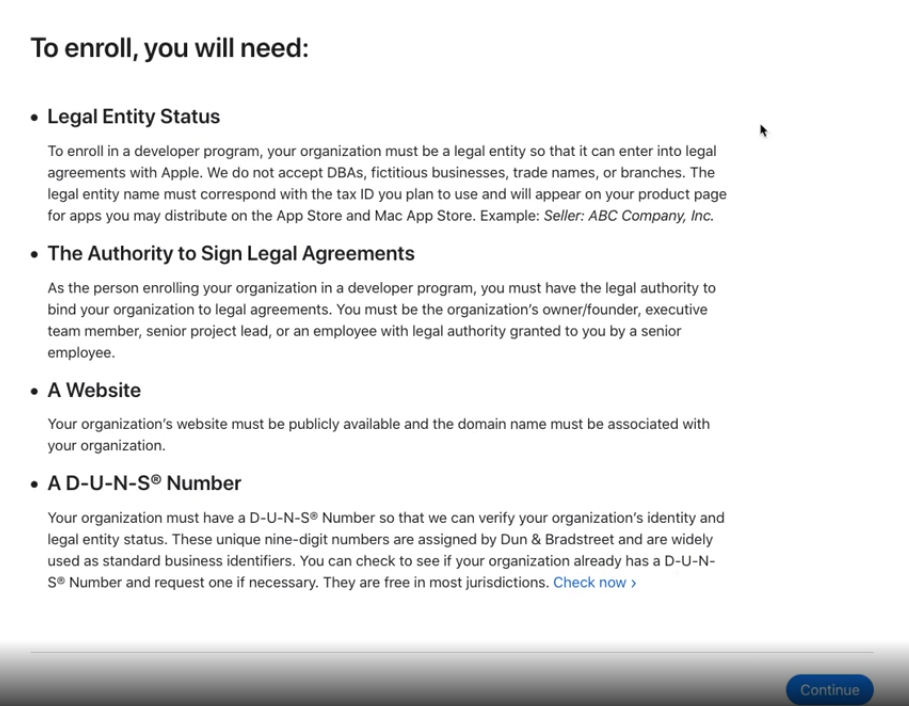
Step 1: Review the enrollment checklistthen click Continue.
Step 2: Enter your organization detailsalong with your D‑U‑N‑S® numberthen click Continue.
A D‑U‑N‑S number is issued by A D‑U‑N‑S number is issued byto businesses worldwide. If you don’t know your.
Note: If you prefer to skip the D‑U‑N‑S number requirement, you can enroll as an Individual. Keep in mind that your personal name will appear as the developer on the App Store.
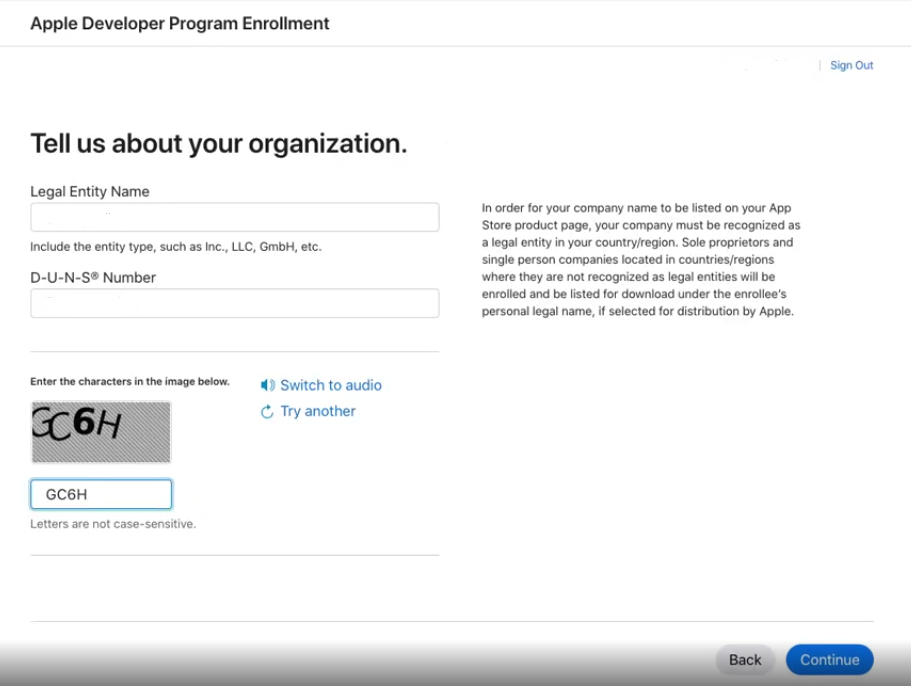
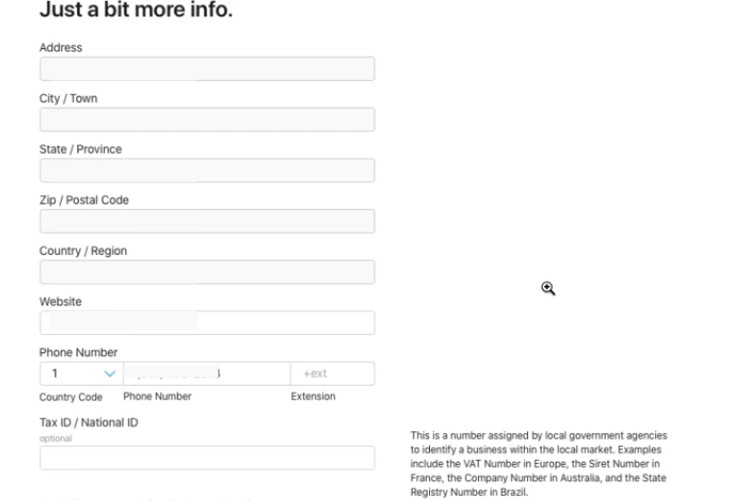
Step 3: Fill in all the required details in the form.
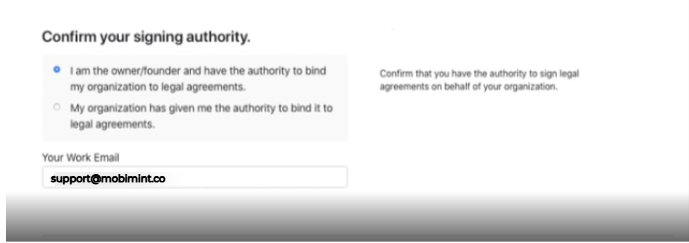
Step 4: Confirm that you have the authority to enroll in the developer account on behalf of your organization, then click Continue.
You will be redirected to aconfirmation page and will receive an email with yourenrollment ID.Apple may also contact you via phone for verification.
Once the process is complete, you’ll receive a link to the payment page.Complete the payment, and your Apple Developer account will be ready to use!.