Sharing the API key is crucial as it improves app performance through app updates, strengthens app security, and streamlines app management. This help document provides detailed step-by-step instructions on how to create and share the API key for iOS apps.
Step 1: Log in to App Store Connect account.
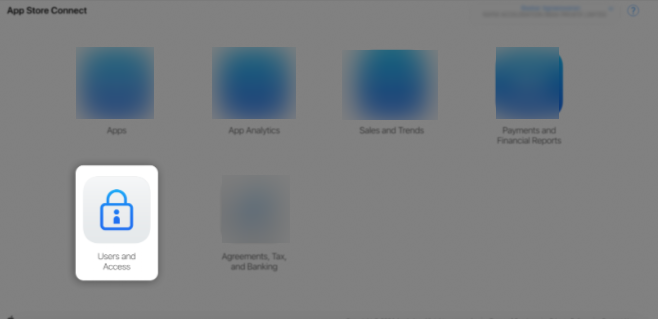
Step 2: Click on Users and Access.
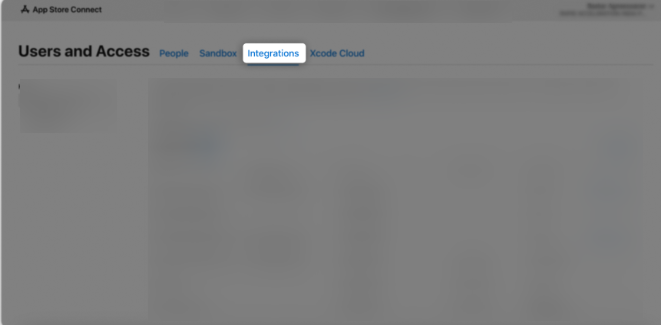
Step 3: Click on the Integrations tab.
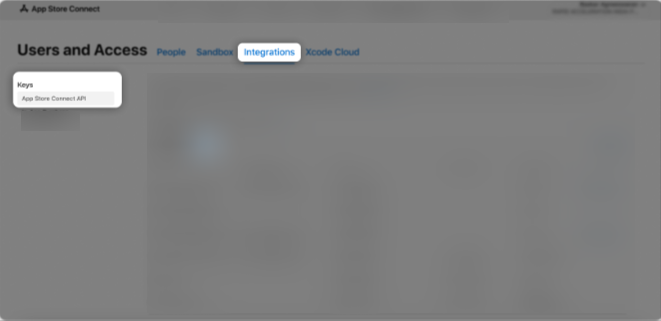
Step 4: In the Keys section, select App Store Connect API, then click the “+” (Add) button.
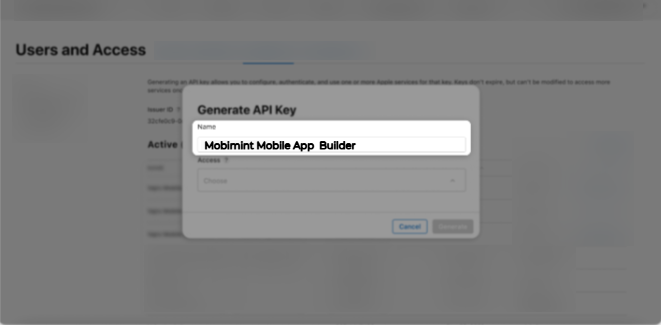
Step 5: A Generate API Key pop-up window will appear.
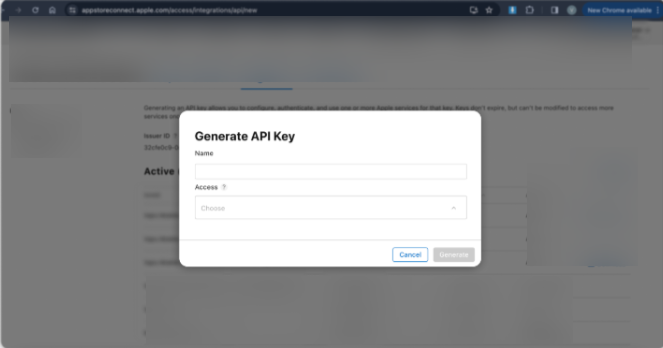
Step 6: Enter “Mobimint Mobile App Builder” as the API key name.
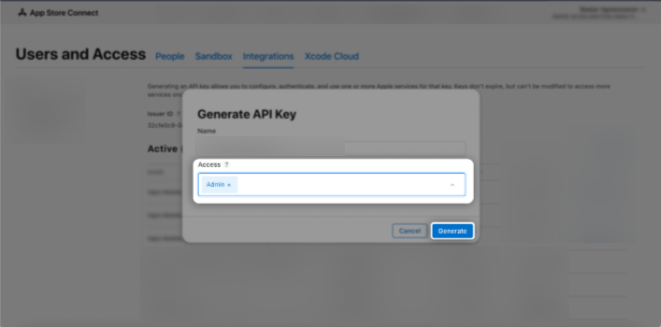
Step 7: In the Access section, choose the Admin role for the key, then click Generate.
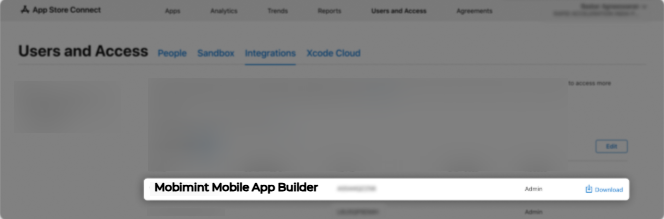
Step 8: The newly created key’s name, Key ID, download link, and other details will be displayed.
Step 9:Go to the Business tab and copy the 8-digit numberdisplayed next to your business name.
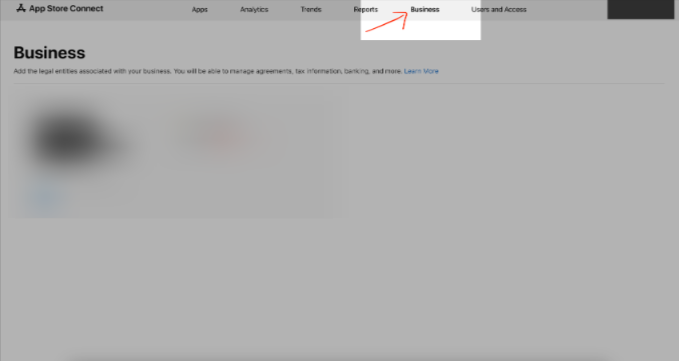
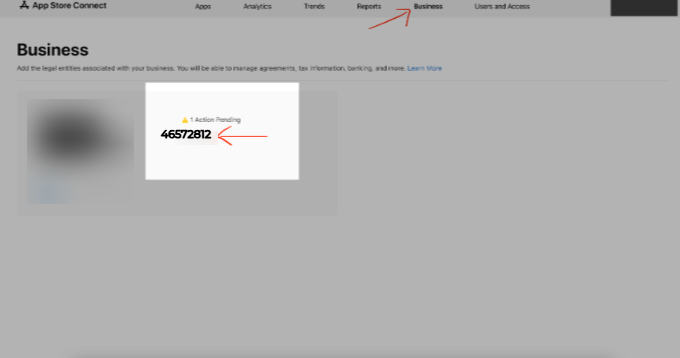
Step 10:Copy the 8-digit Vendor Number, then paste the Vendor IDinto the dashboard.
If you have any questions or need any assistance in performing the steps, please reach out to us at support@staging.mobimint.co.