-
Designing Your App
-
Push Notifications
-
Live Selling with Mobify
-
Launching Your App
- How to Find Your Domain Purchase Receipt
- Guidelines for a seamless Store Listing process
- Getting Your Store Listed
- Store Listing Description Templates
- iOS & Android Apps Getting Rejected? Here are the reasons and solutions!
- How to get a DUNS Number for your business
- Steps to create and share the API Key of your iOS app with Mobimint
- Steps to create and share the API Key of your Android app with Mobimint
- Creating a Google Play Developer Account
- How to create an Apple Developer Account - A Step-by-Step Guide
- Retrieval of Developer Account ID - Android
- Retrieval of API JSON file - Android
- Retrieval of Issuer ID - iOS
- Retrieval of API Key ID - iOS
- Retrieval of Vendor ID - iOS
- Retrieval of p8 file - iOS
- Show Remaining Articles (1) Collapse Articles
-
Admin App
-
Plug-ins and Integrations
-
Billing and Subscription
-
App Building 101
-
Setting Up your Google Developer Account with Mobify
-
Setting up your Apple Developer Account with mobify
Sharing the API key is crucial as it improves app performance through app updates, strengthens app security, and streamlines app management. This help document provides detailed step-by-step instructions on how to create and share the API key for iOS apps.
Step 1: Log in to App Store Connect account.
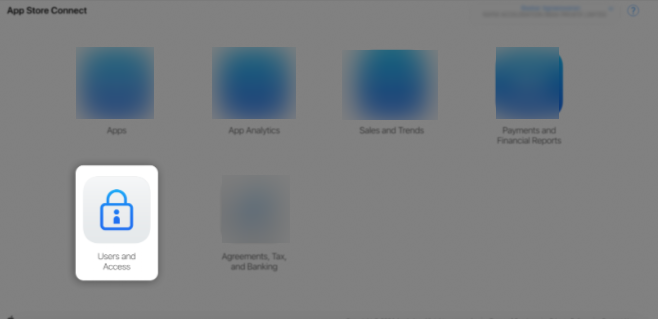
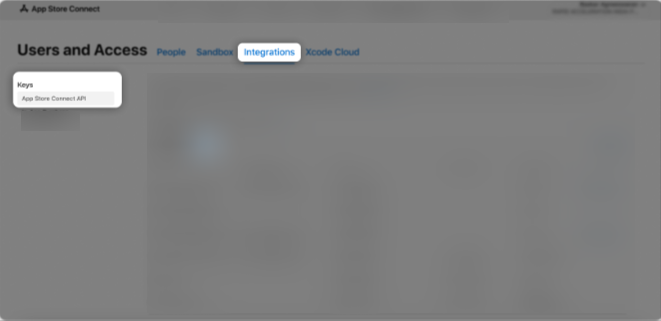
Step 2: Click on Users and Access.
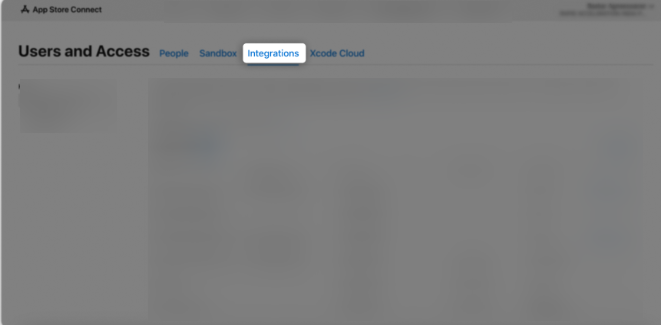
Step 3: Click on the Integrations tab.
Step 4: In the Keys section, select App Store Connect API, then click the “+” (Add) button.
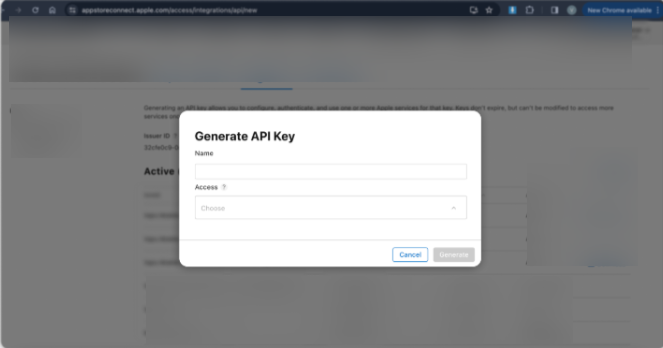
Step 5: A Generate API Key pop-up window will appear.
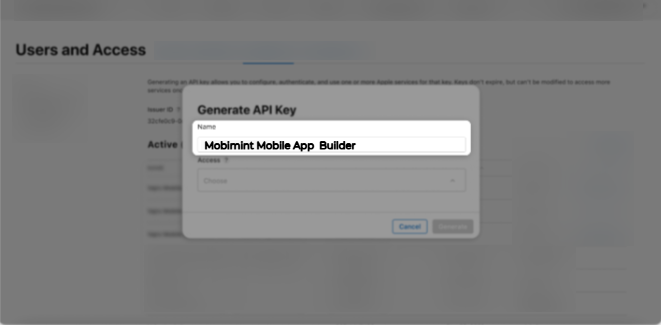
Step 6: Enter “Mobimint Mobile App Builder” as the API key name.
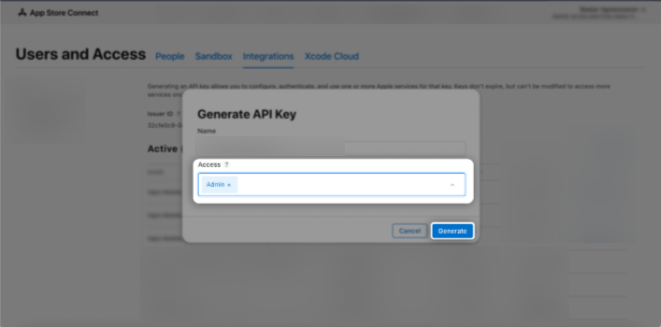
Step 7: In the Access section, choose the Admin role for the key, then click Generate.
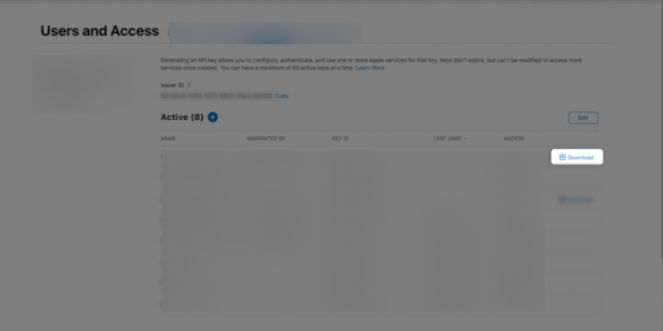
Step 8: The newly created key’s name, Key ID, download link, and other details will be displayed.
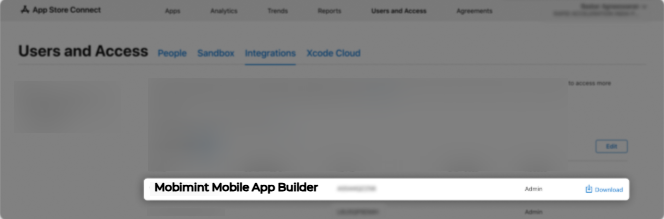
Step 9:Click the Download button to save the API key as a .p8file on your system. Then, upload this file to the dashboard.