-
Designing Your App
-
Push Notifications
-
Live Selling with Mobify
-
Launching Your App
- How to Find Your Domain Purchase Receipt
- Guidelines for a seamless Store Listing process
- Getting Your Store Listed
- Store Listing Description Templates
- iOS & Android Apps Getting Rejected? Here are the reasons and solutions!
- How to get a DUNS Number for your business
- Steps to create and share the API Key of your iOS app with Mobimint
- Steps to create and share the API Key of your Android app with Mobimint
- Creating a Google Play Developer Account
- How to create an Apple Developer Account - A Step-by-Step Guide
- Retrieval of Developer Account ID - Android
- Retrieval of API JSON file - Android
- Retrieval of Issuer ID - iOS
- Retrieval of API Key ID - iOS
- Retrieval of Vendor ID - iOS
- Retrieval of p8 file - iOS
- Show Remaining Articles (1) Collapse Articles
-
Admin App
-
Plug-ins and Integrations
-
Billing and Subscription
-
App Building 101
-
Setting Up your Google Developer Account with Mobify
-
Setting up your Apple Developer Account with mobify
It’s one of the strongest methods to reach your customers personally. Using Mobimint, you can send tailored notifications or automate them based on certain conditions.
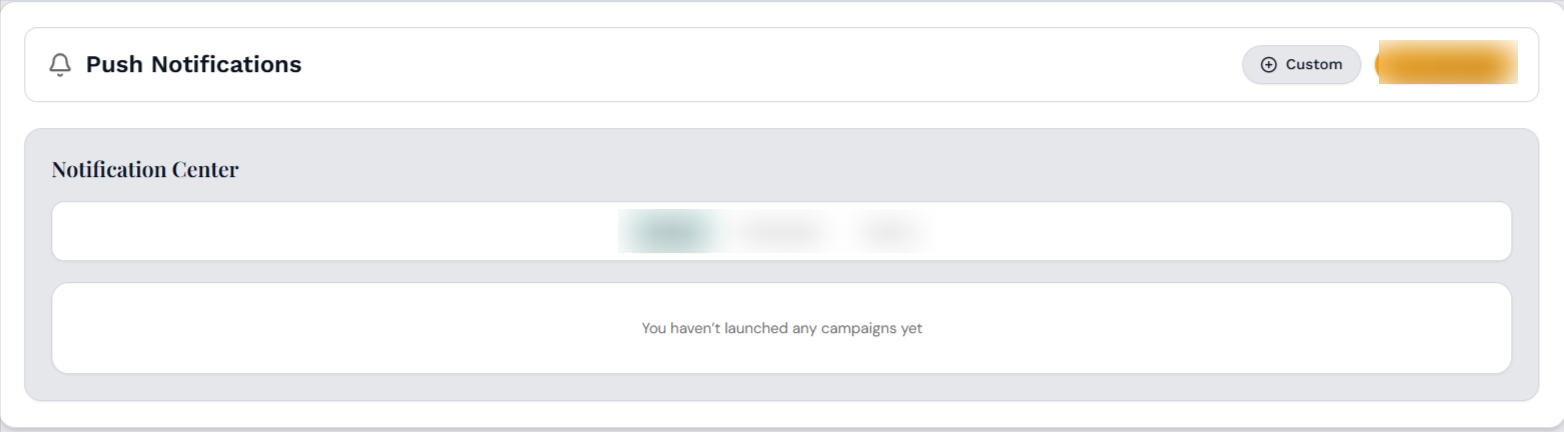
In the Mobimint dashboard, click Design Layout > Notification and choose Custom to launch your custom campaigns.
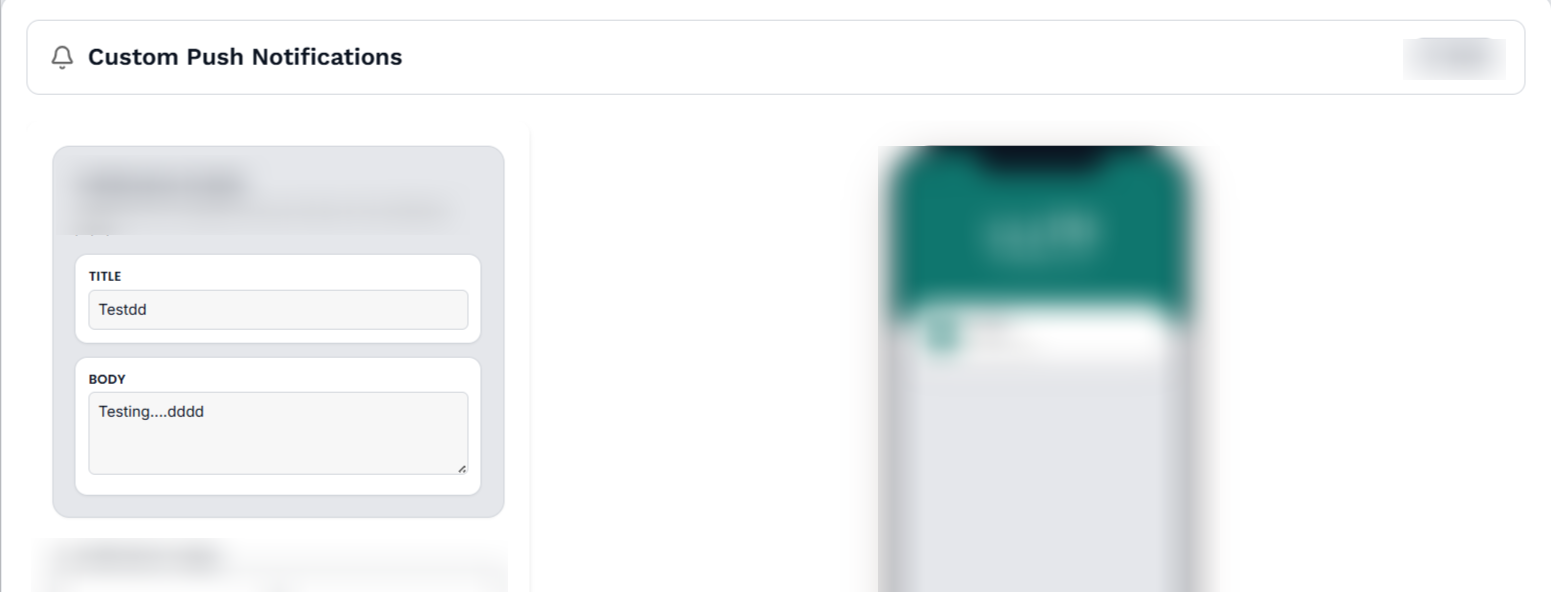
Simply add a title and a message body for your notification.
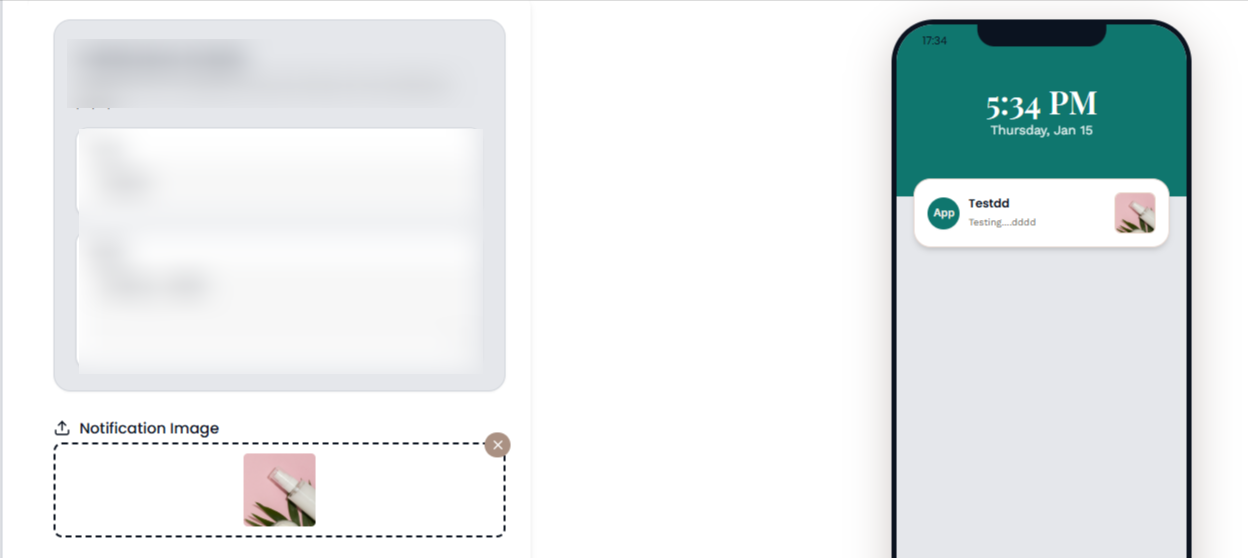
Rich Media Notifications
To make your notifications more attractive and clear, you can attach images or GIFs. The ideal dimensions are 1000px × 500px. It’s not mandatory, but media can significantly improve engagement.
The best feature comes last — you only need to set your campaigns once, and they’ll run automatically. This helps you save time and stay focused on crafting memorable moments for your customers. To explore how to schedule push campaigns ahead of time, use this link.