
Sharing the API key is crucial as it improves app performance through app updates, strengthens app security, and streamlines app management. This help document provides detailed step-by-step instructions on how to create and share the API key for iOS apps.
Step 1: Log in to App Store Connect account.
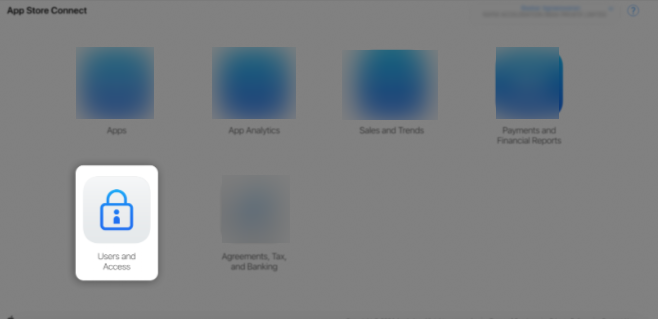
Step 2: Click on Users and Access.
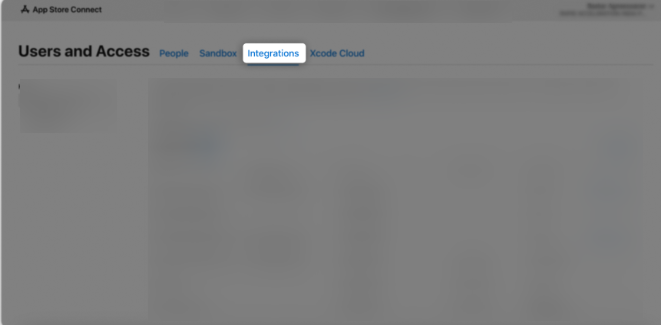
Step 3: Click on the Integrations tab.
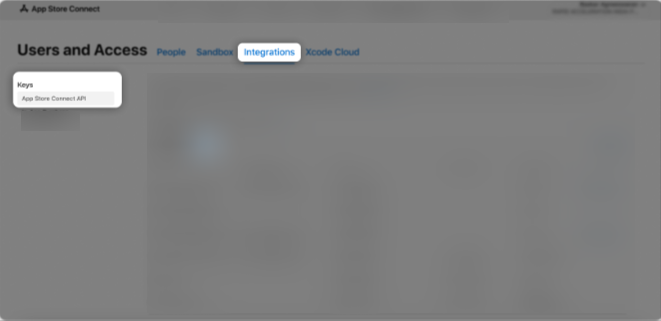
Step 4: In the Keys section, select App Store Connect API, then click the “+” (Add) button.
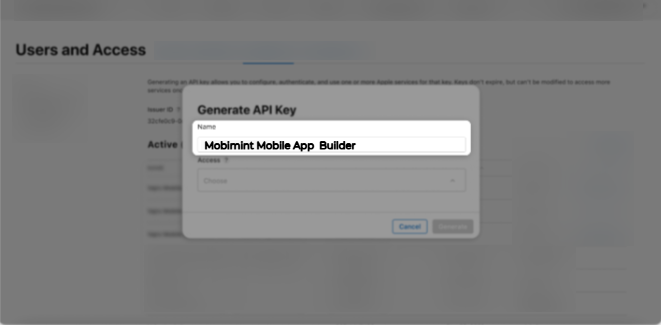
Step 5: A Generate API Key pop-up window will appear.
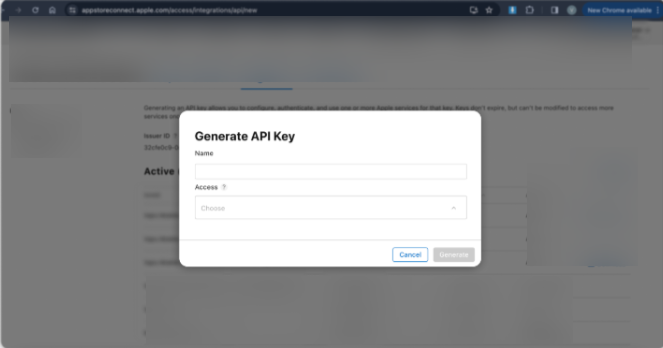
Step 6: Enter “Mobimint Mobile App Builder” as the API key name.
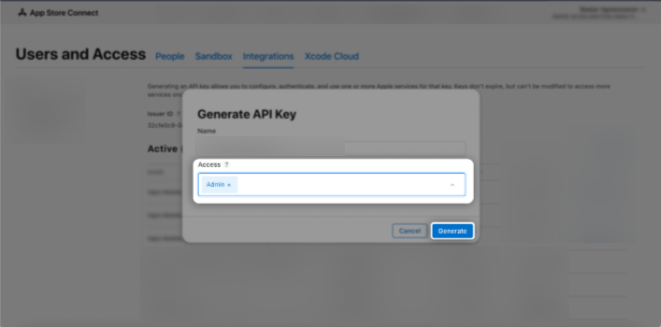
Step 7: In the Access section, choose the Admin role for the key, then click Generate.
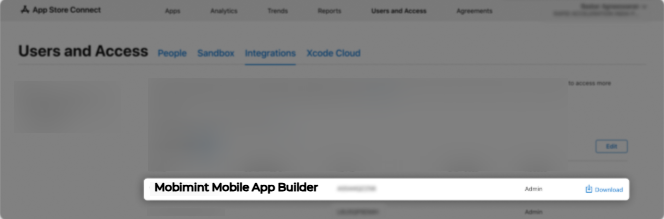
Step 8: The newly created key’s name, Key ID, download link, and other details will be displayed.
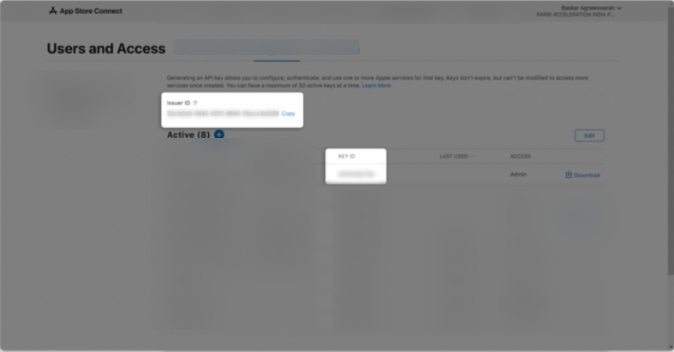
Step 9: Copy the Issuer ID and Key ID. Keep these details handy, as they will be required during key submission.
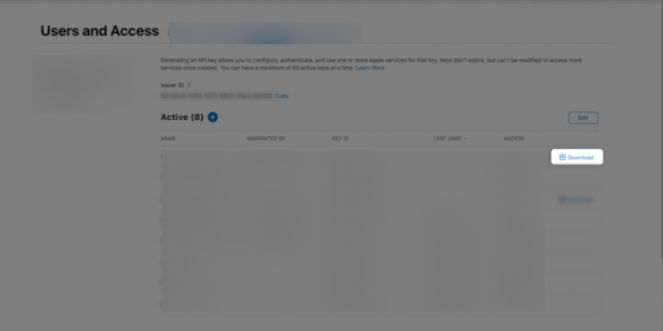
Step 10: Click the Download button to save the API key as a .p8 file.
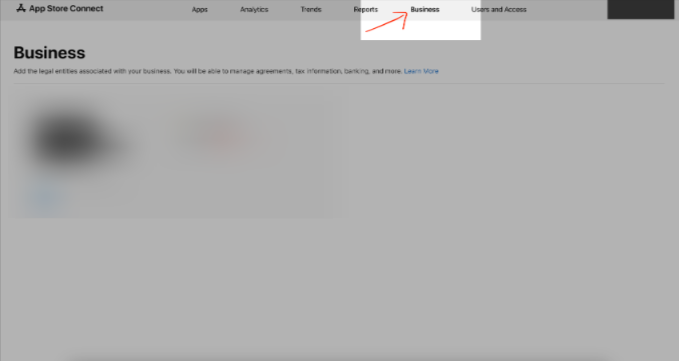
Step 11: Go to the Business tab .
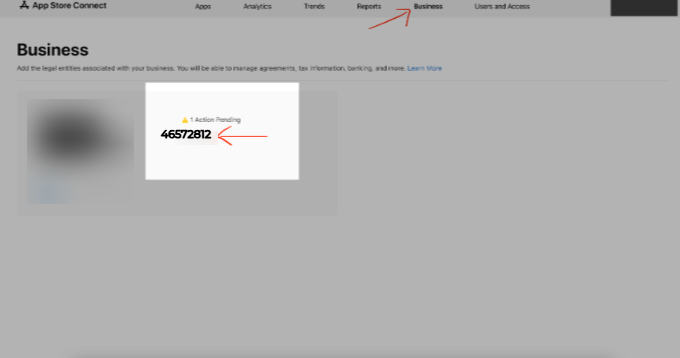
Step 12: Copy the 8-digit Vendor Number, which appears next to your business name and address. Keep this information, as it will be required during key submission.
Step 13: Upload the following details in the Mobimint Admin Dashboard:
a) Issuer ID and Key ID copied in Step 9
b) The API key (.p8 file) downloaded in Step 10
c) The Vendor Number copied in Step 12

If you have any questions or need any assistance in performing the steps, please reach out to us at support@mobimint.co.