
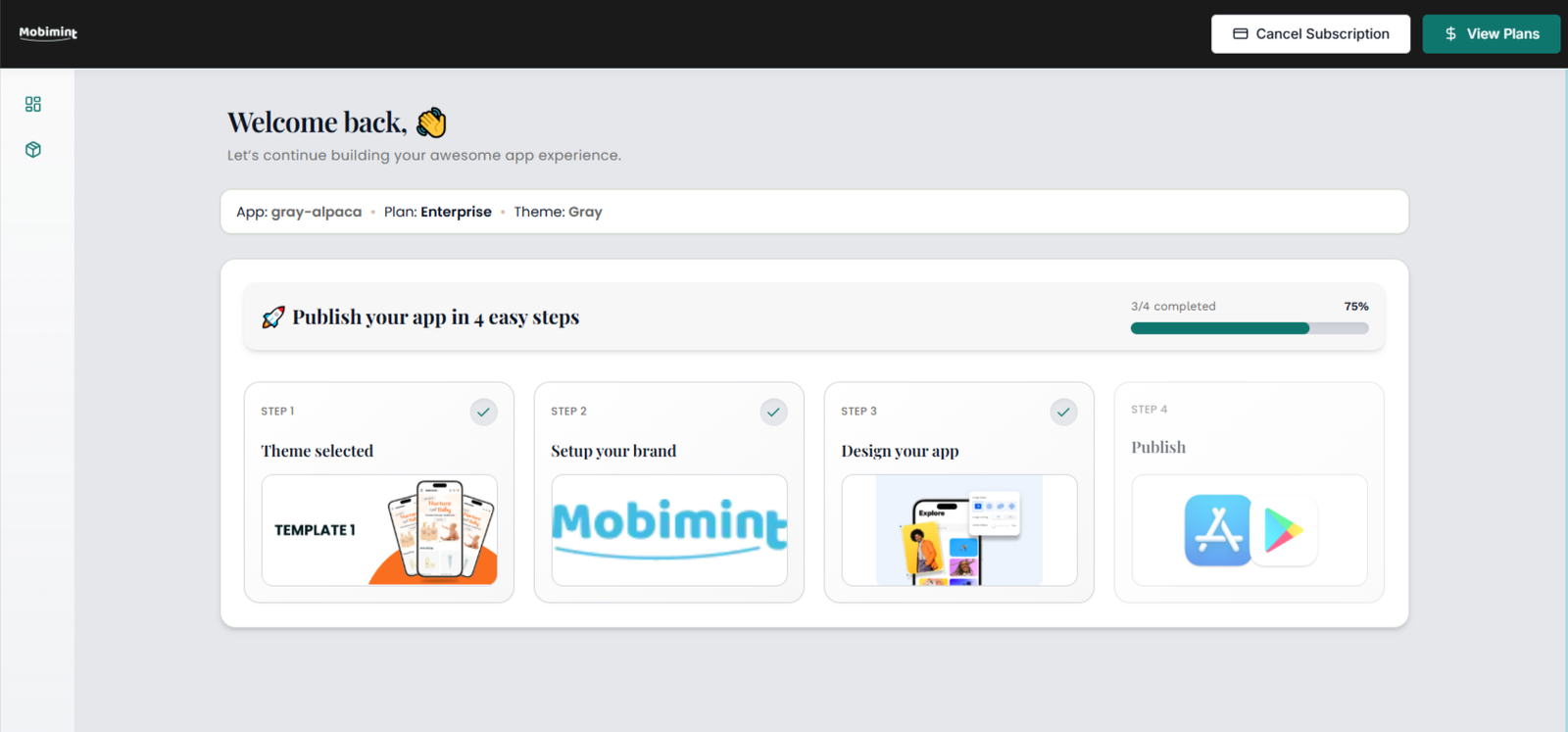
After setting up Mobimint, a lot of brands start designing their mobile application. Mobimint user-friendly framework makes it simple to make modifications, and the app instantly displays them. Customising the homepage to reflect the aesthetic and personality of your brand is the first step in developing the visual experience of the app.
Pricing
Our consumers can choose from themes for any price range.
The Design Editor is divided into four parts: Themes, Personalise Branding, Change Content, and Navigation.
The themes area offers four distinct customisation options. Emporio, Moda, and Shnit work perfectly for fashion-focused online stores, while Omorfia is designed specifically for beauty and wellness brands. You can choose whichever theme you prefer and build your app’s design from there.
Let’s take a closer look at the Themes area in the Mobimint dashboard.
Go to the Mobimint dashboard > Design Editor > Themes.
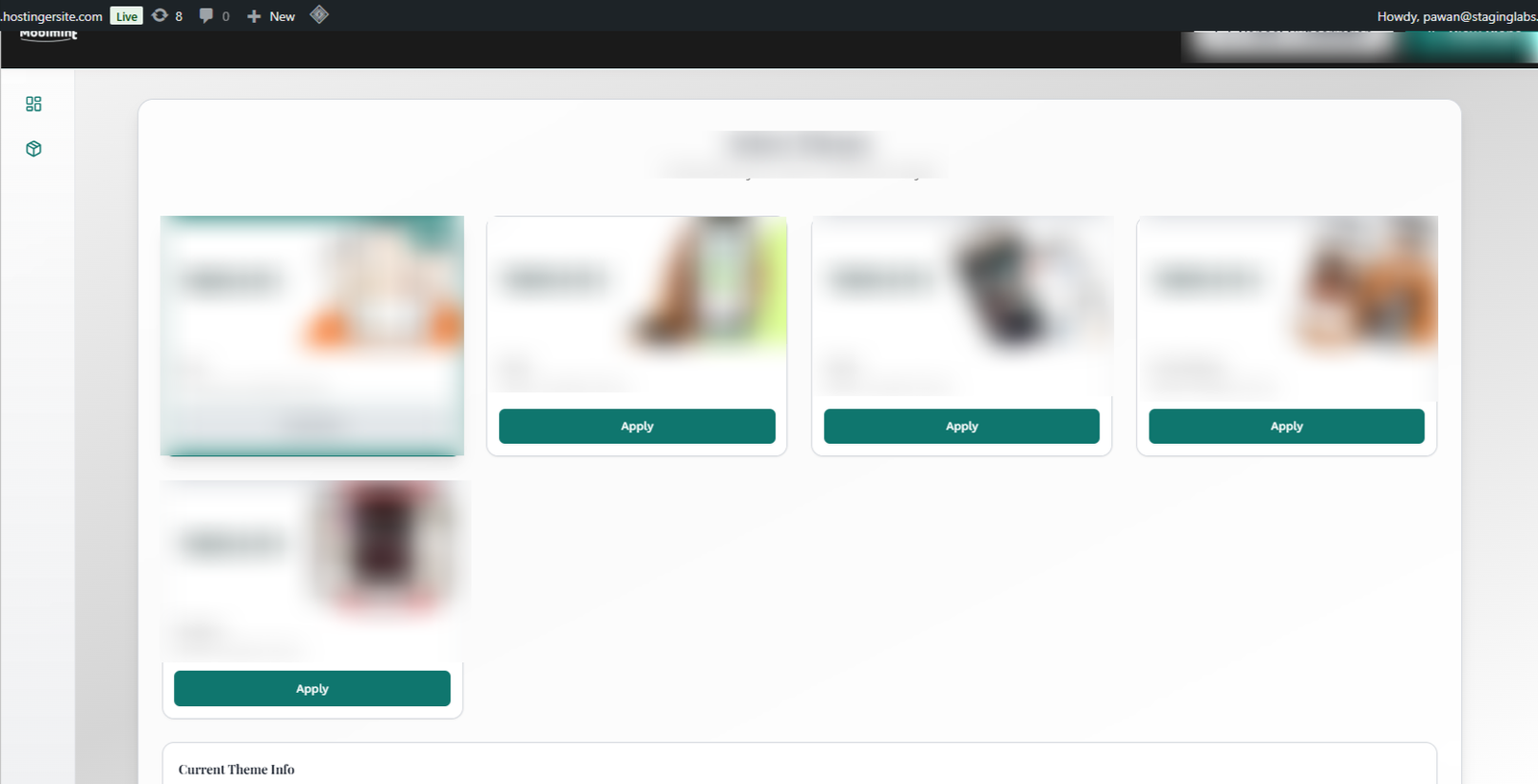
If you want to set any preset for your mobile app, simply choose the Apply Theme feature.
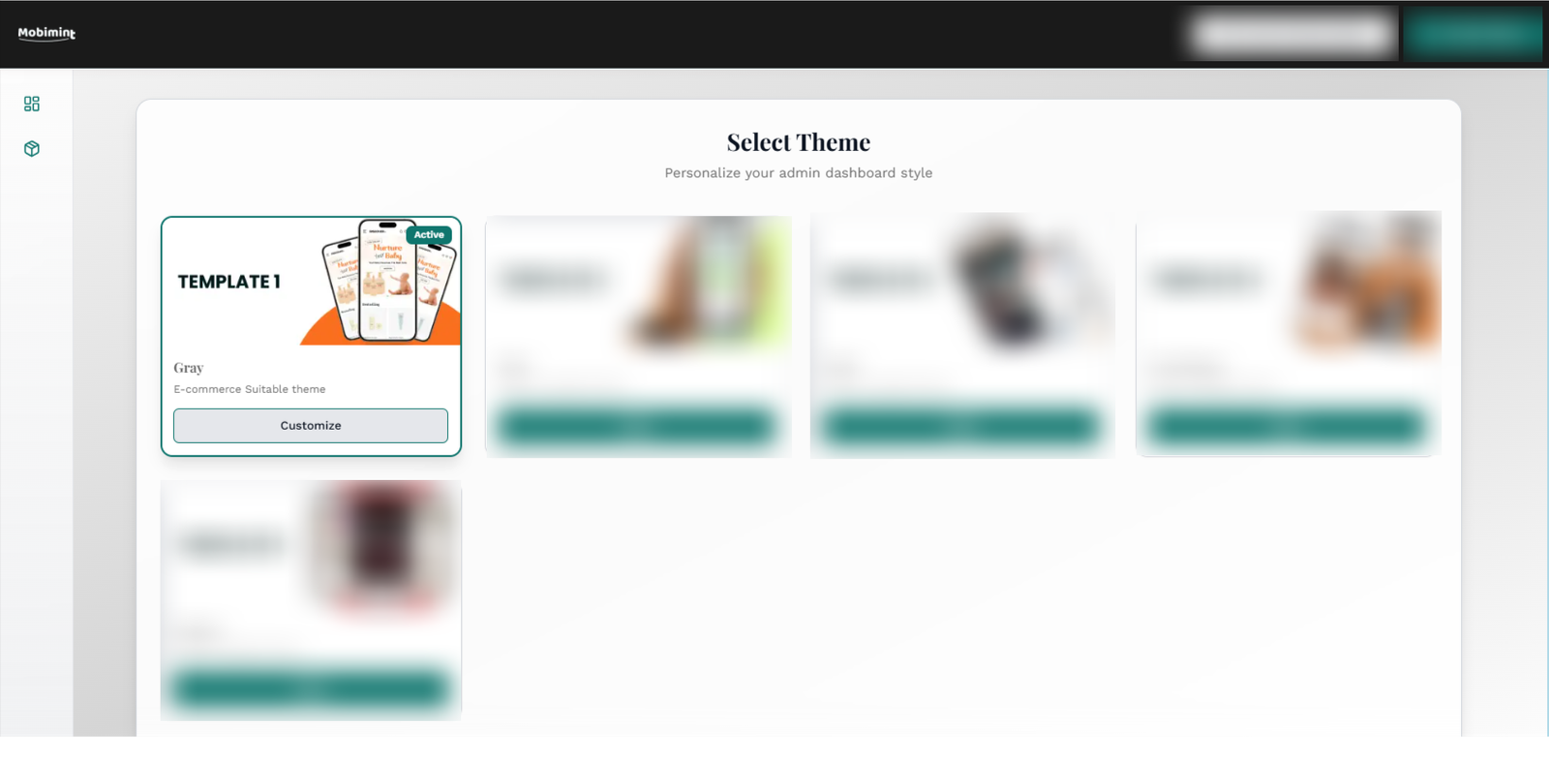
To update or redesign an already selected theme, simply press the Customize button.
If you want to reuse an old theme, simply click Click to Apply. A drop-down menu will appear with your available options.
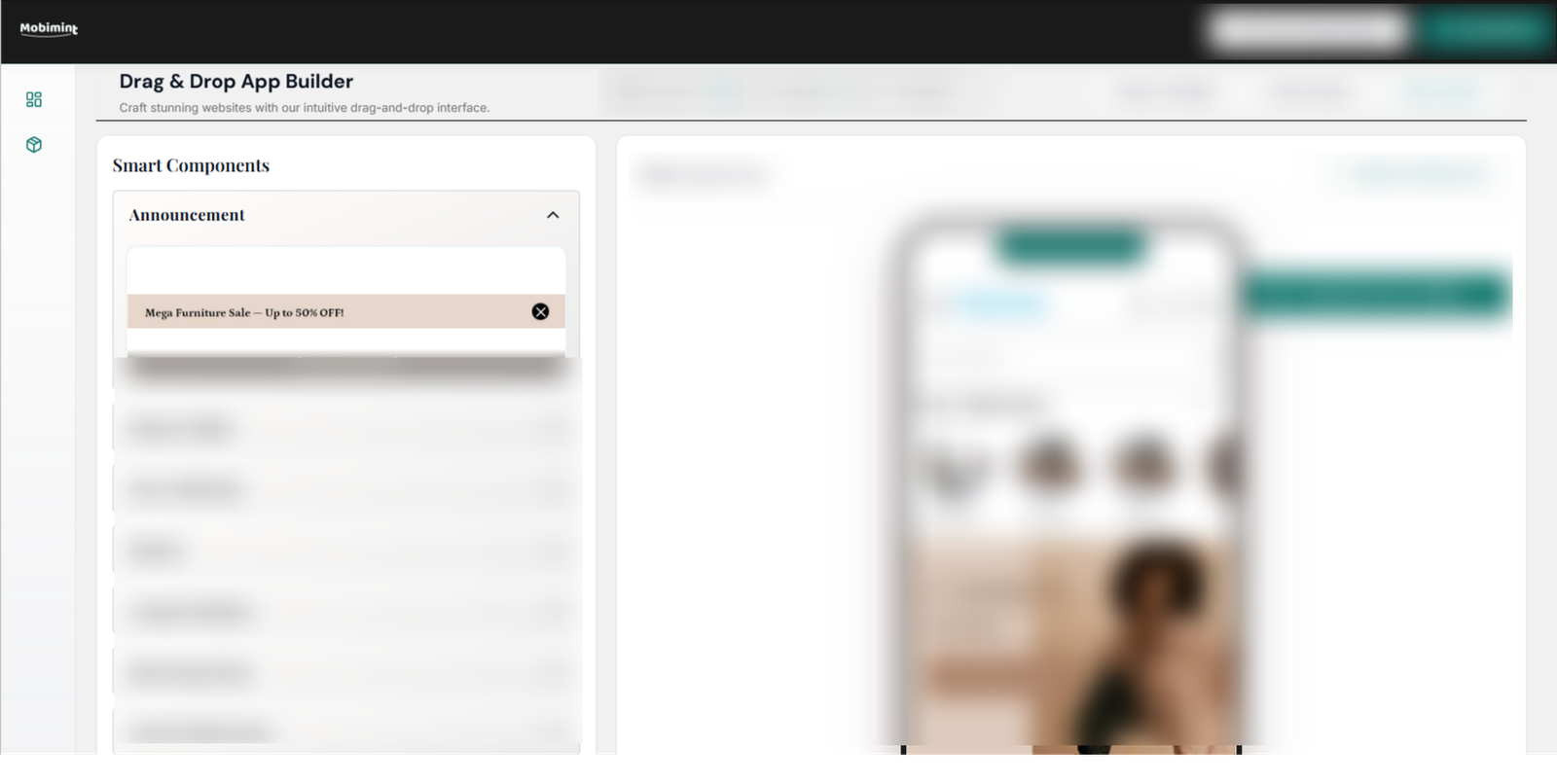
When the theme is applied, you’ll see a preview of your app using the built-in images. From there, you can update the widgets and tailor them to your preferences.
We’ve just covered a quick snapshot of the Themes section. For guidance on additional parts of the Design Editor, feel free to click here.
If you need clarification on this article, feel free to contact us via the dashboard chat or drop us a message at support@mobimint.co