How Can We Help?
-
Designing Your App
-
Push Notifications
-
Live Selling with Mobify
-
Launching Your App
- How to Find Your Domain Purchase Receipt
- Guidelines for a seamless Store Listing process
- Getting Your Store Listed
- Store Listing Description Templates
- iOS & Android Apps Getting Rejected? Here are the reasons and solutions!
- How to get a DUNS Number for your business
- Steps to create and share the API Key of your iOS app with Mobimint
- Steps to create and share the API Key of your Android app with Mobimint
- Creating a Google Play Developer Account
- How to create an Apple Developer Account - A Step-by-Step Guide
- Retrieval of Developer Account ID - Android
- Retrieval of API JSON file - Android
- Retrieval of Issuer ID - iOS
- Retrieval of API Key ID - iOS
- Retrieval of Vendor ID - iOS
- Retrieval of p8 file - iOS
- Show Remaining Articles (1) Collapse Articles
-
Admin App
-
Plug-ins and Integrations
-
Billing and Subscription
-
App Building 101
-
Setting Up your Google Developer Account with Mobify
-
Setting up your Apple Developer Account with mobify
< All Topics
Print
Posted
Updated
Bypawan@staginglabs.in
With Mobimint, you can set up campaigns and schedule them for later, helping you save time and concentrate on additional tasks.
Pricing
The feature is available from Premium plan onwards.
Step 1: During Custom notification setup, choose the radio button label Schedule for Later.
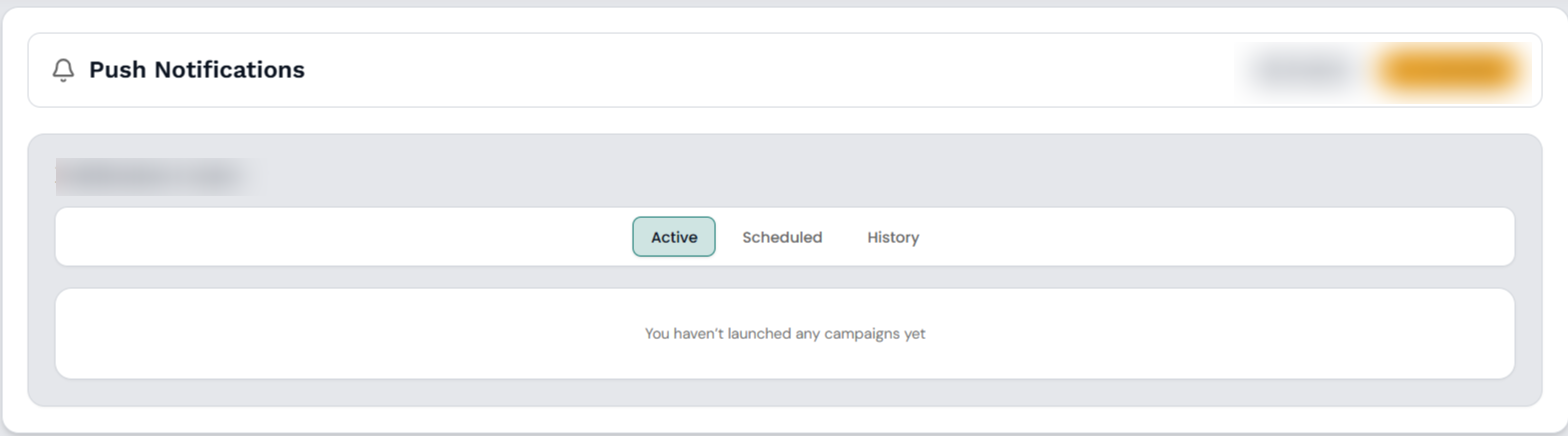
Step 2: Choose the date first, then on the right side select the time — available in 5-minute increments — for your campaign to go live.
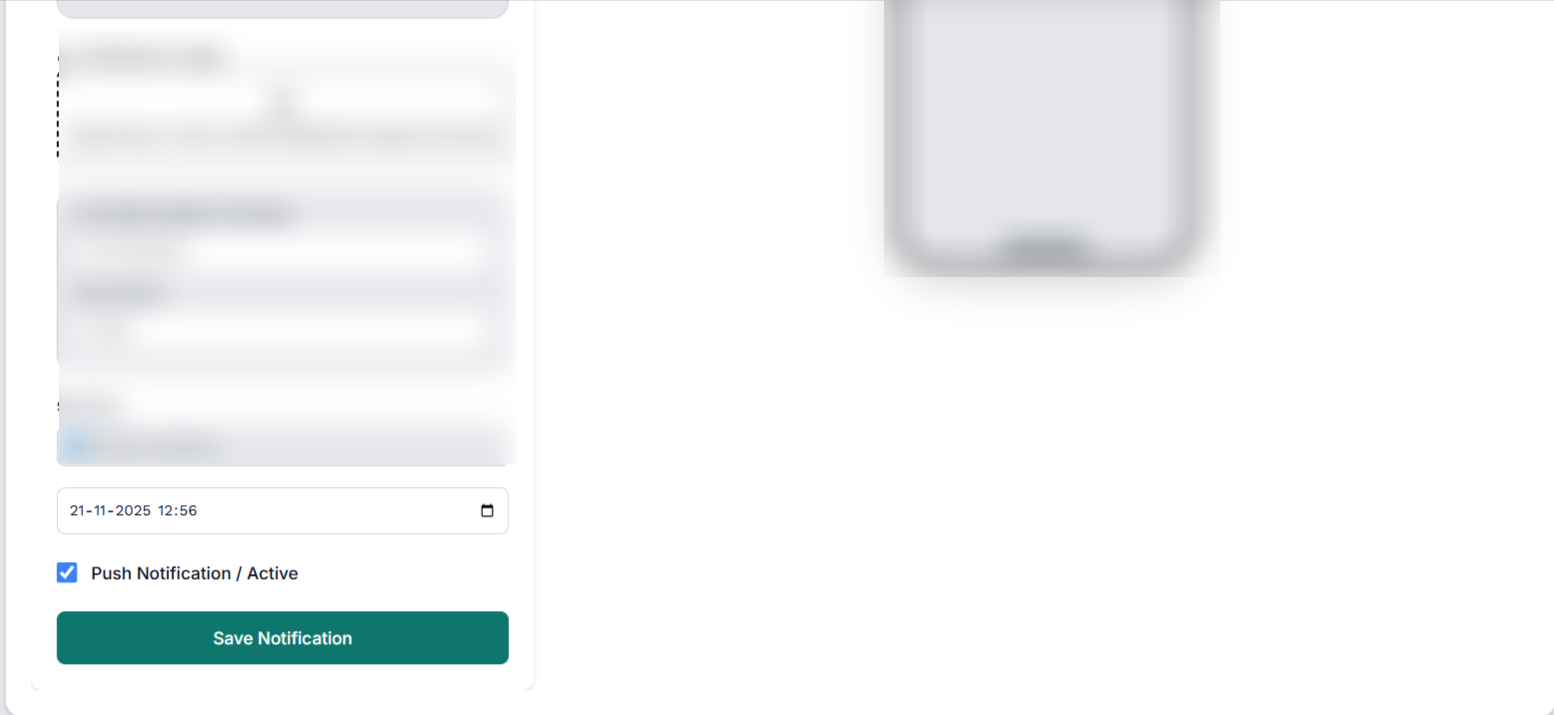
Step 3:Once the date and time are finalized, press the Save Notification button to confirm and your notification will be scheduled.
All your scheduled notifications appear in a list. To remove any, simply select the Cancel button beside that notification.
That’s it — everything is set up.
Table of Contents